> ## Documentation Index
> Fetch the complete documentation index at: https://docs.scribe.commure.com/llms.txt
> Use this file to discover all available pages before exploring further.
# Common Issues & Troubleshooting
> Fixes for the most common problems with recordings, notes, and uploads.
Find the section below that matches what you're seeing.
### Microphone Not Detected
Make sure your browser has been granted microphone access. If permissions were previously denied, see the Permissions Denied steps below.
Ensure your microphone is physically plugged in or your device's built-in mic is not disabled.
Go to your browser settings and navigate to Site Permissions > Microphone to confirm access is allowed for Commure Scribe.
If you have multiple audio devices, try selecting a different one in the browser's site settings.
Close all browser windows and reopen them, then try recording again.
On macOS, go to **System Preferences > Security & Privacy > Microphone** and make sure your browser is listed and enabled. On Windows, go to **Settings > Privacy > Microphone** and ensure microphone access is on.
### Microphone Permissions Denied
If you're getting a "Microphone access not granted" error, follow the steps for your browser below.
**1. If you get a "Microphone access not granted" error, then you may have disabled mic permissions**
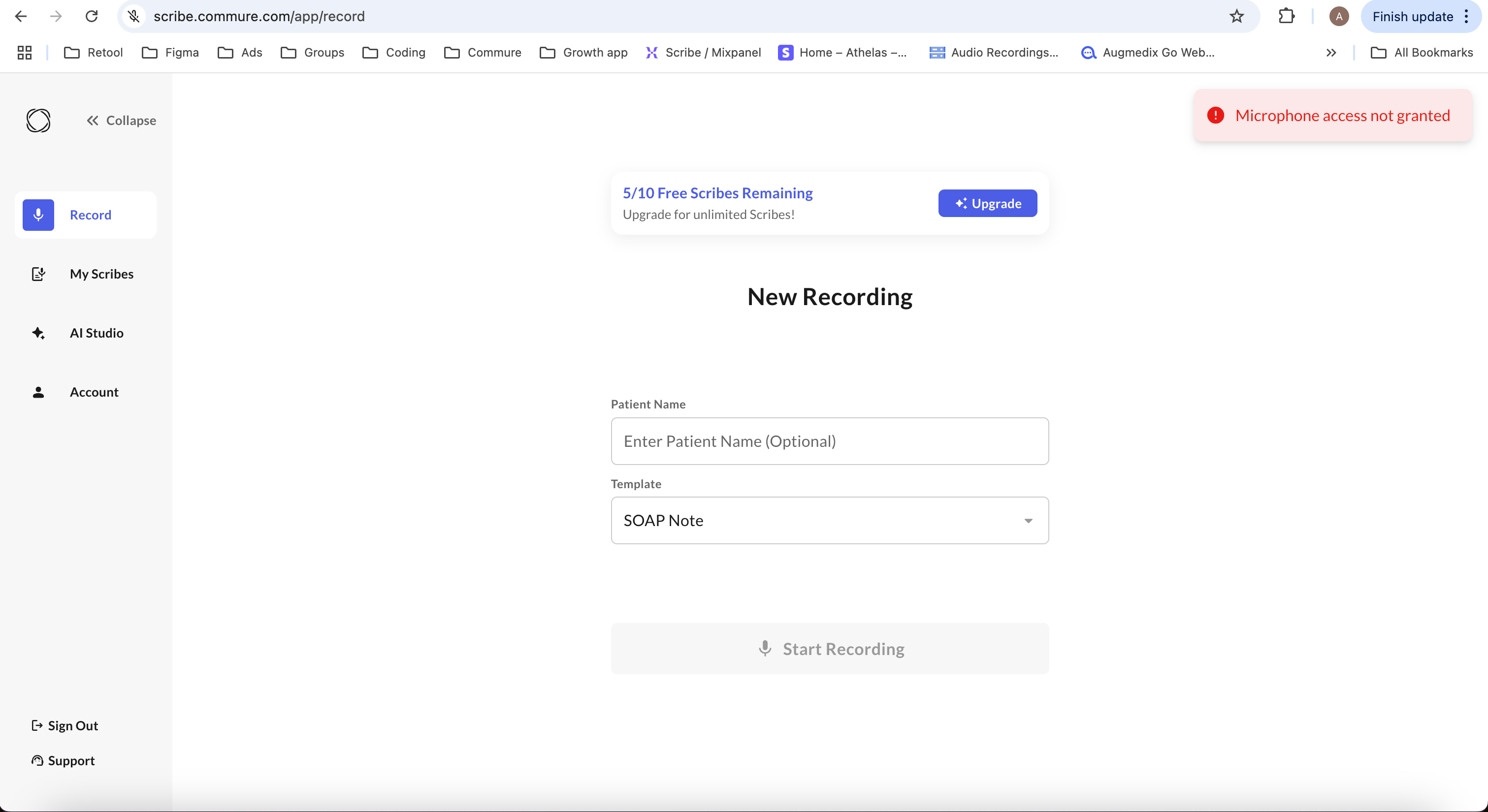 **2. Click on the site setting option next to the address bar**
 **3. Toggle the microphone permission to on (it should be a blue toggle)**
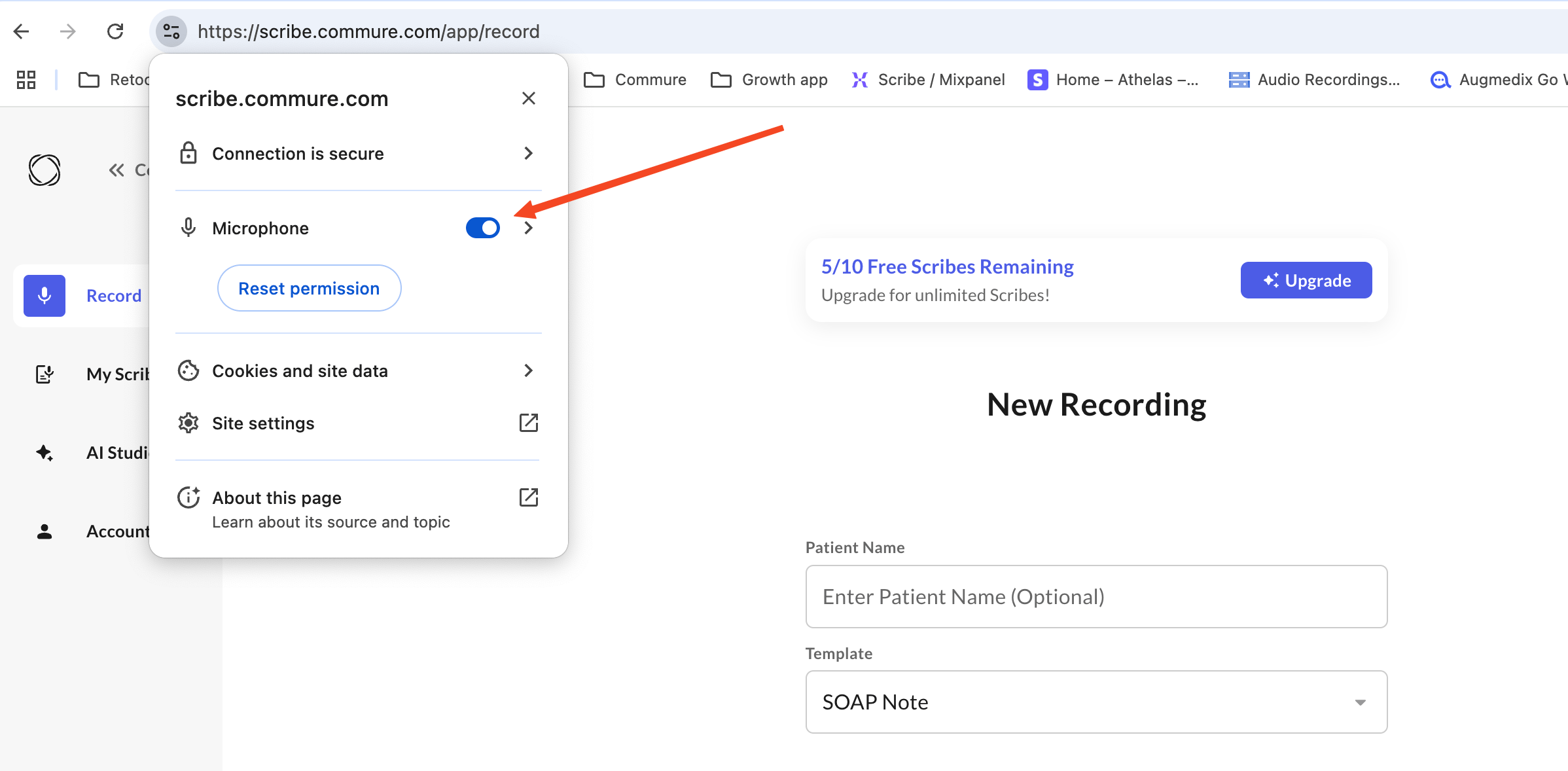 **4. Make sure to reload the page to apply the change**
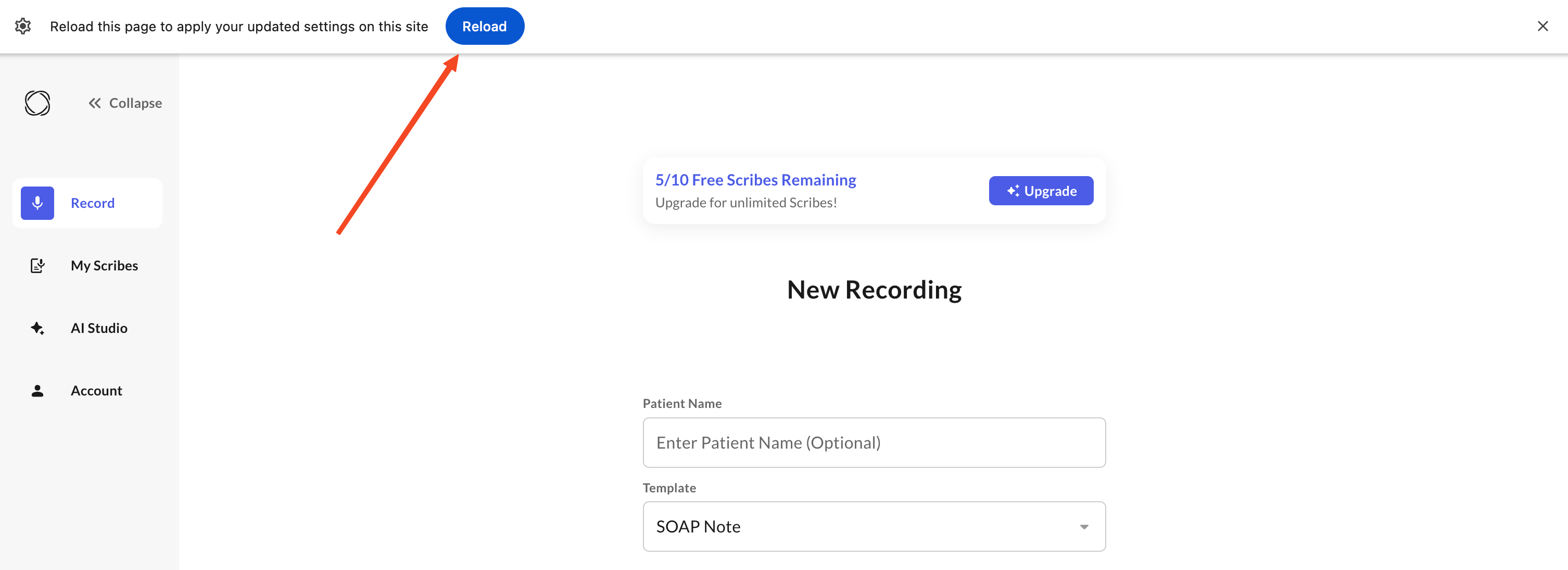 **1. If you get a "Microphone access not granted" error, then you may have disabled mic permissions**
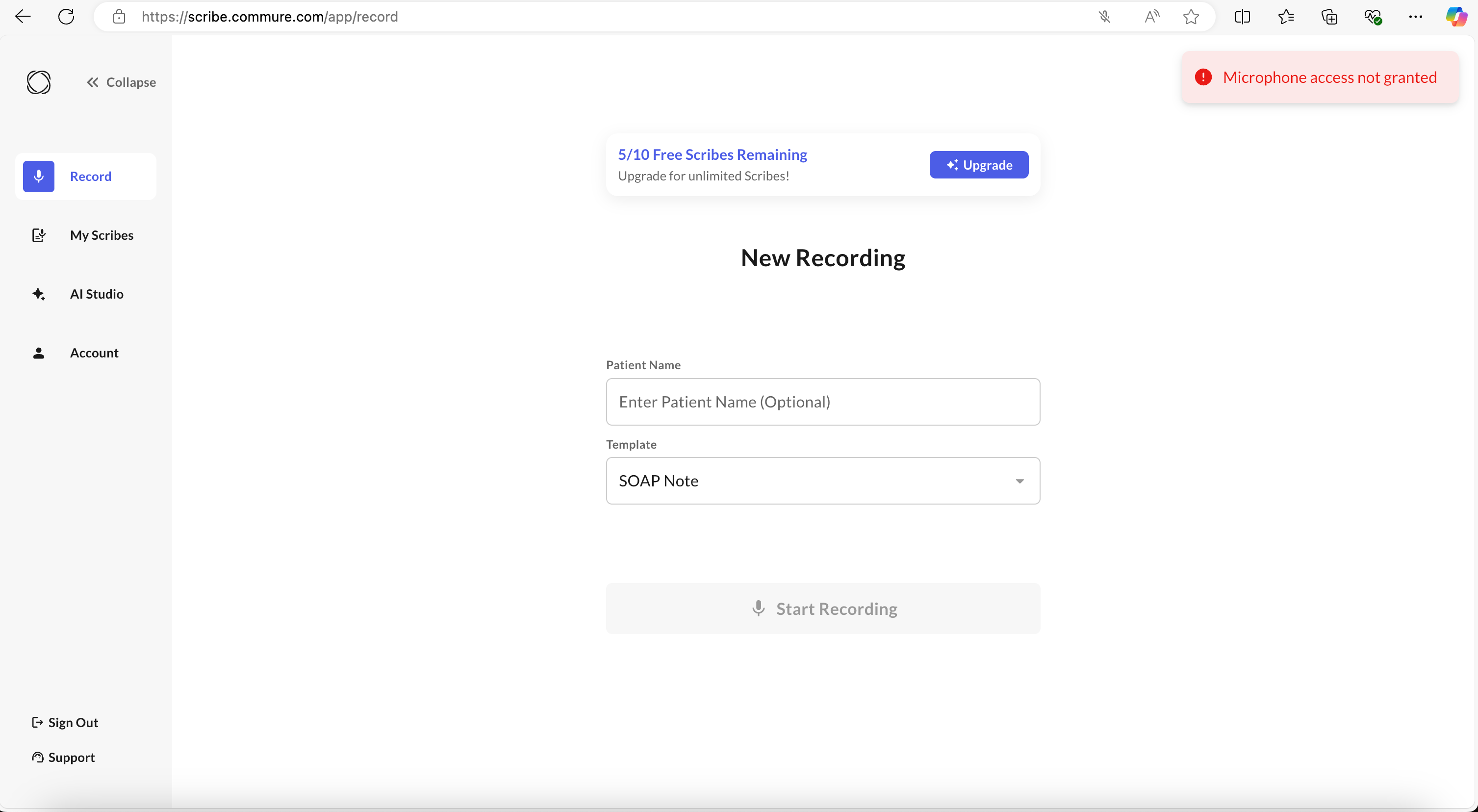 **2. Click on the lock icon next to the address bar**
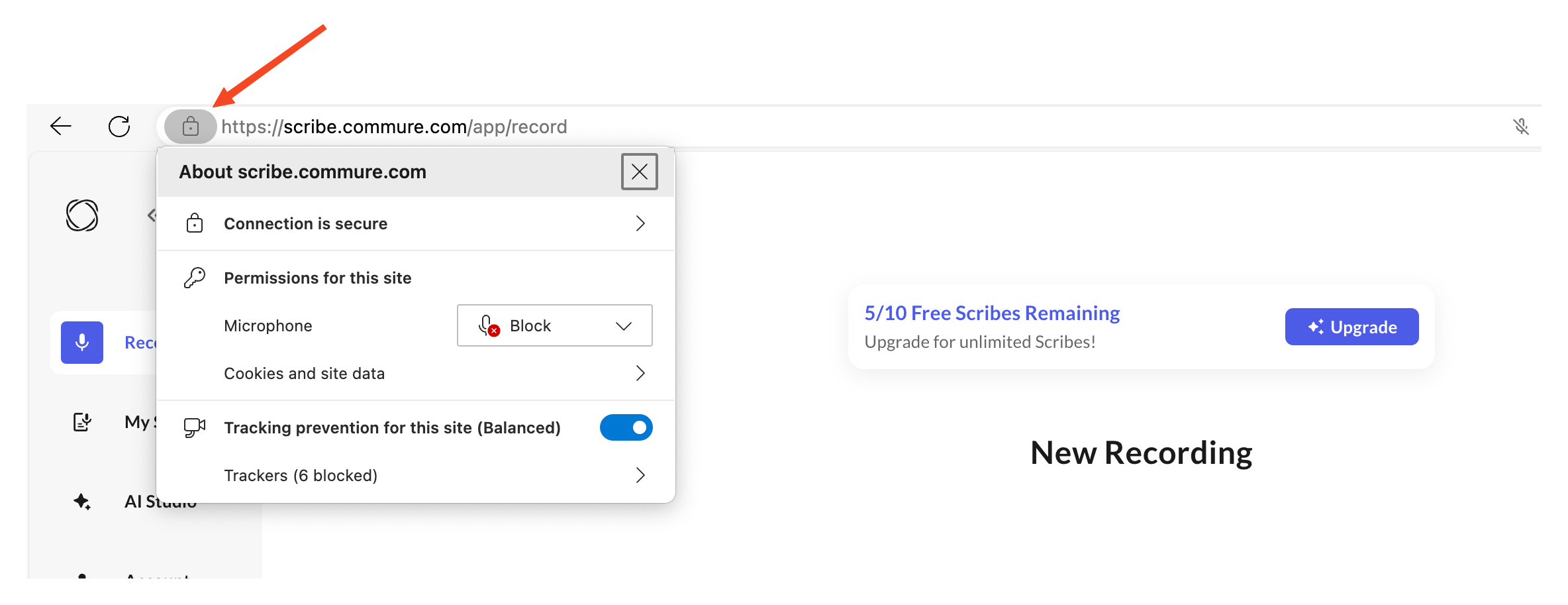 **3. Click on the Microphone Dropdown**
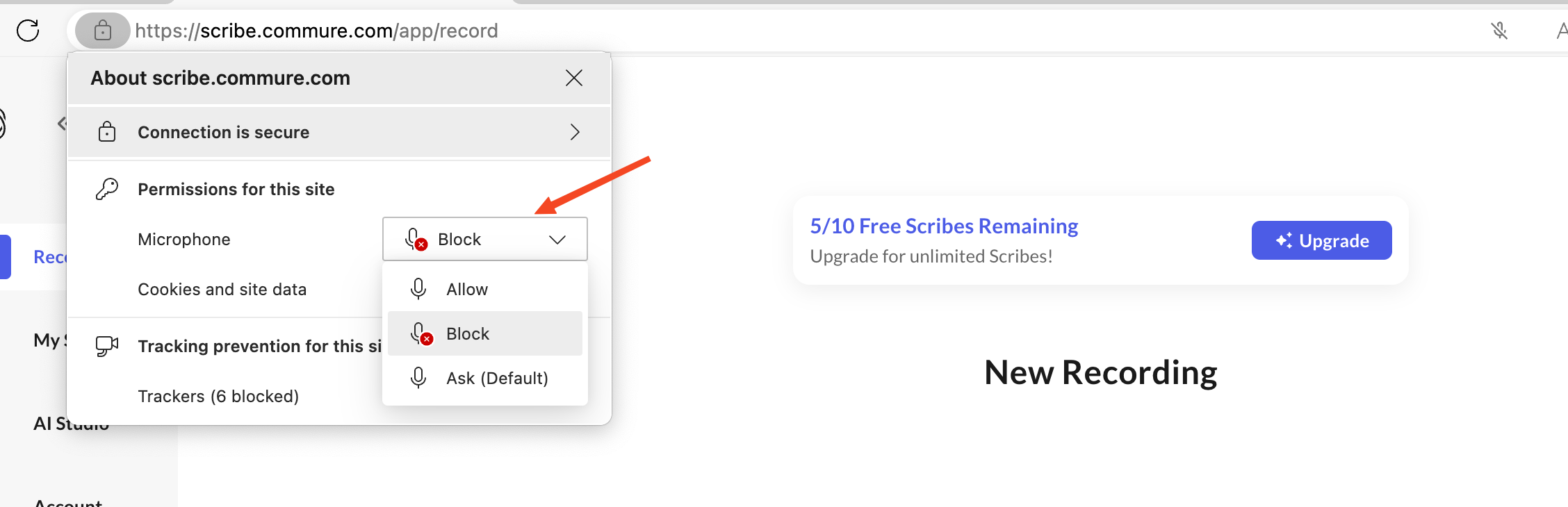 **4. Select Allow**
 **5. Make sure to refresh the page to apply the change**
 ## Safari on macOS
**1. If you get a "Microphone access not granted" error, then you may have disabled mic permissions**
## Safari on macOS
**1. If you get a "Microphone access not granted" error, then you may have disabled mic permissions**
 **2. Click on Safari on the top left corner**
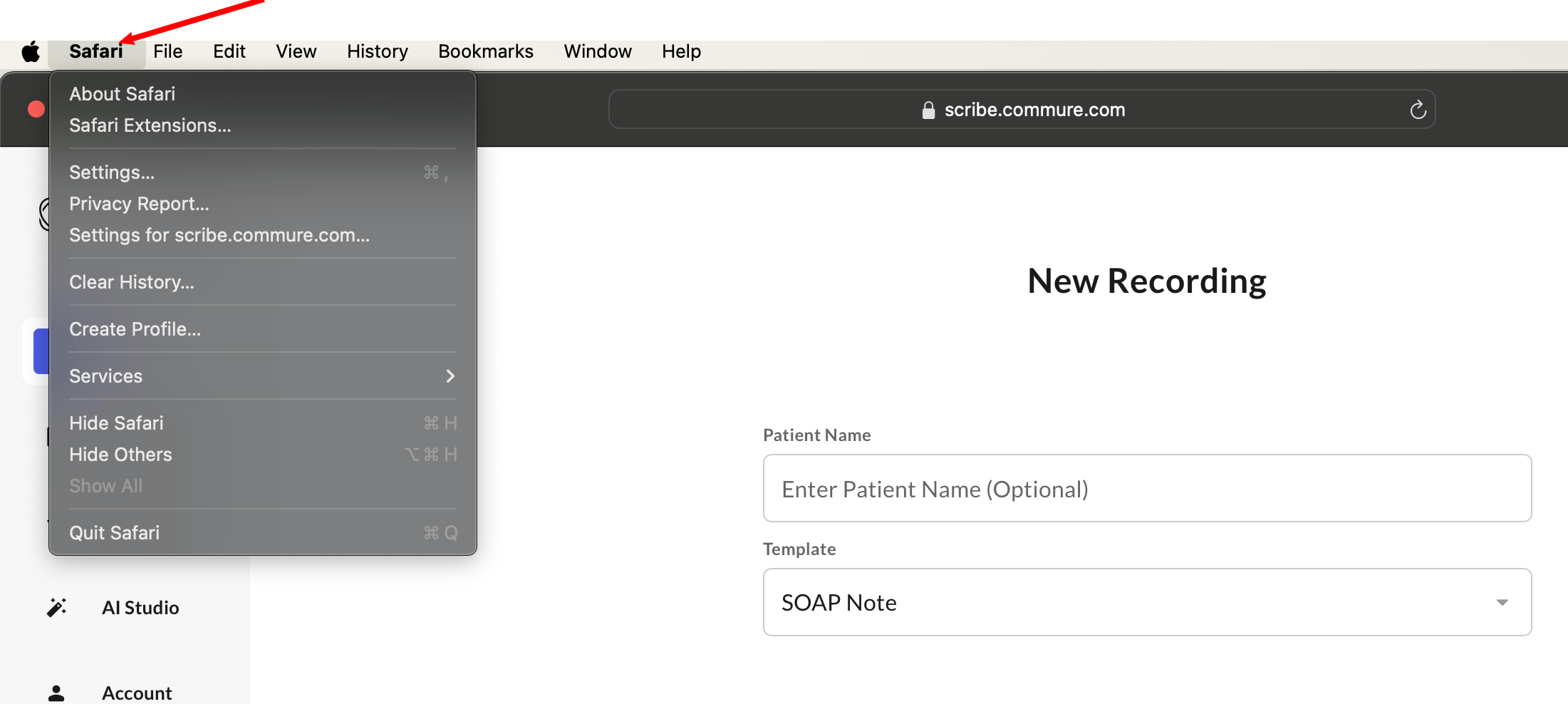 **3. Click on Settings**
 **4. Click on Websites in the new Settings window**
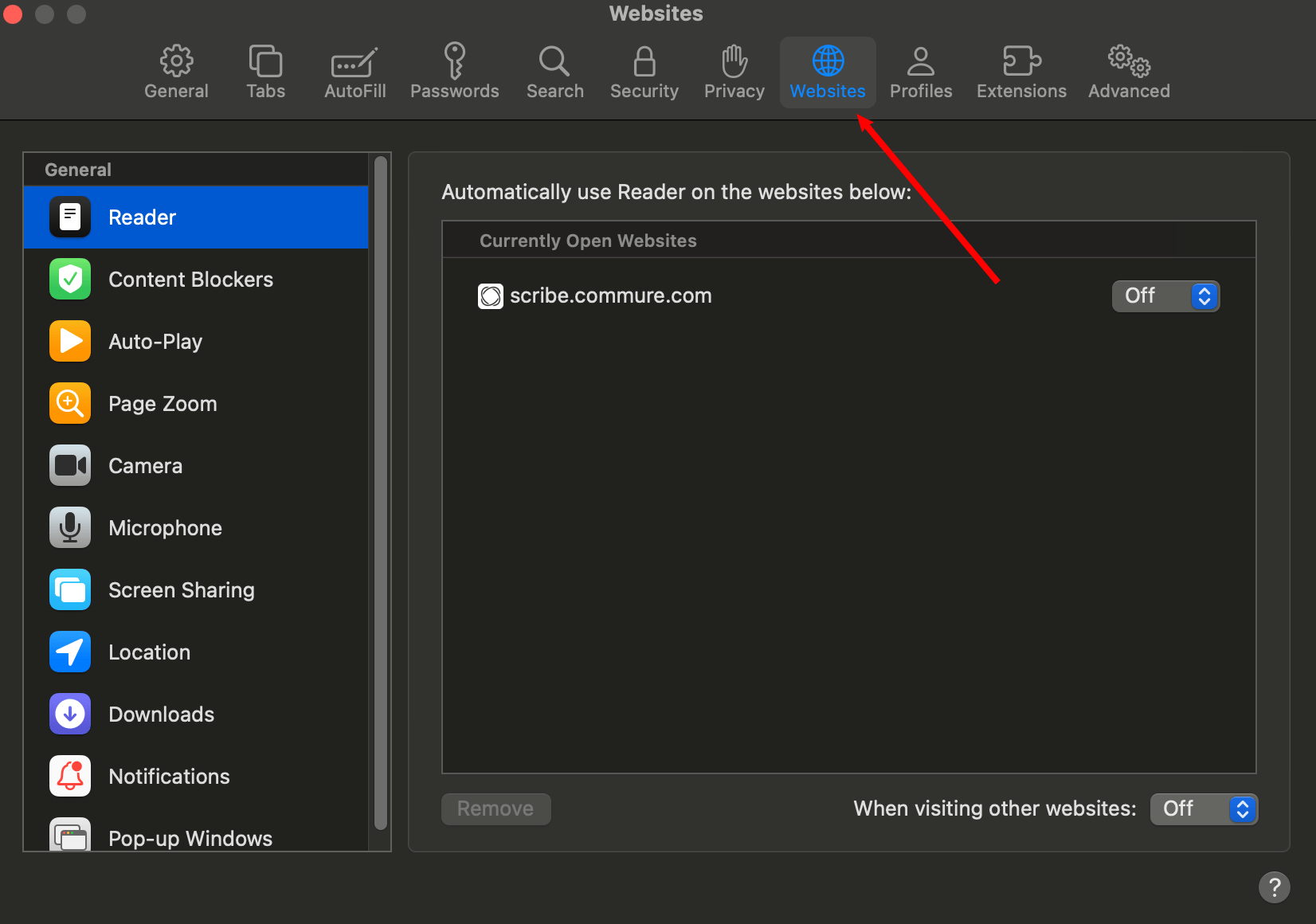 **5. Click on Microphone on the left side bar**
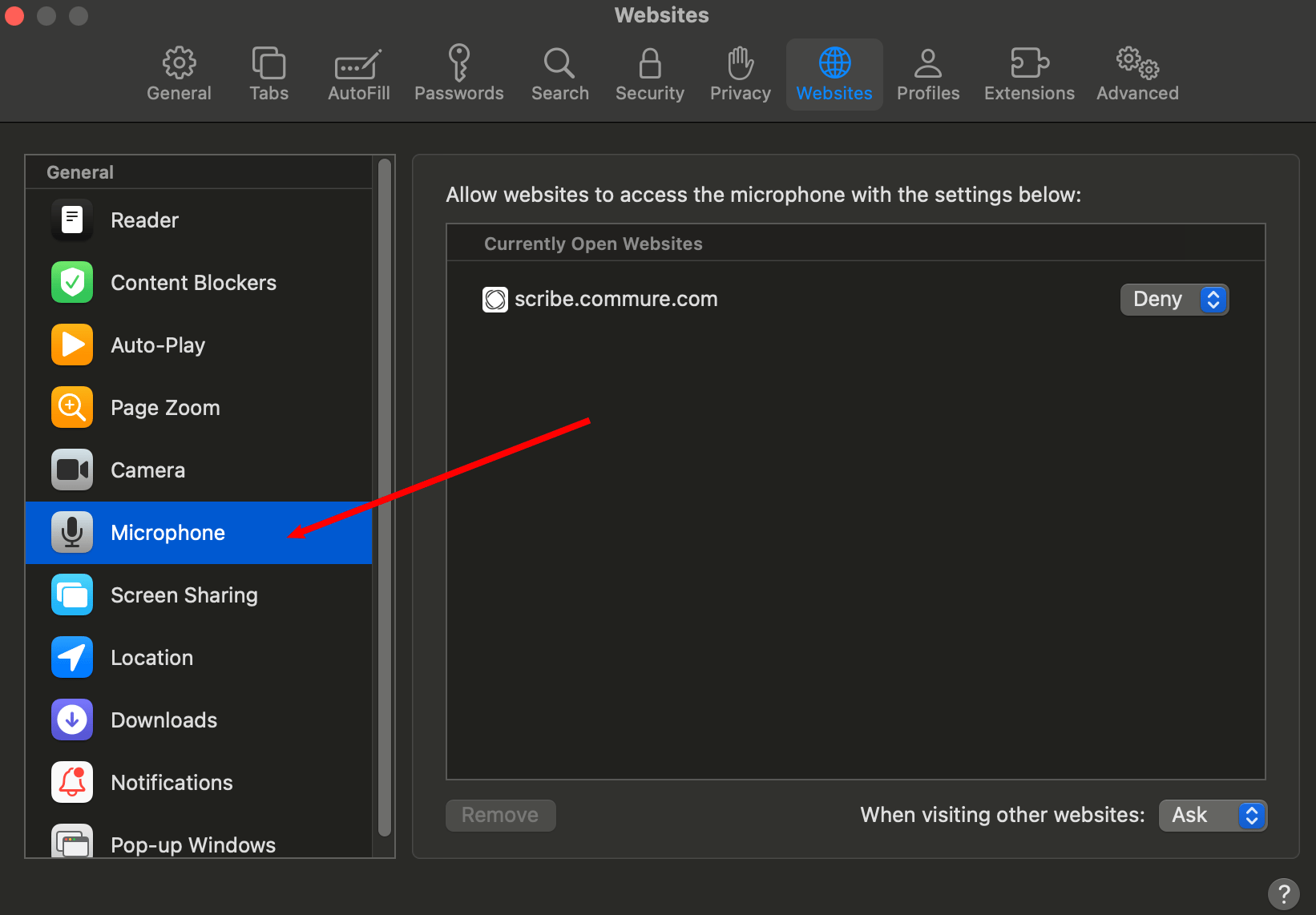 **6. Click on the dropdown on the right and select Allow**
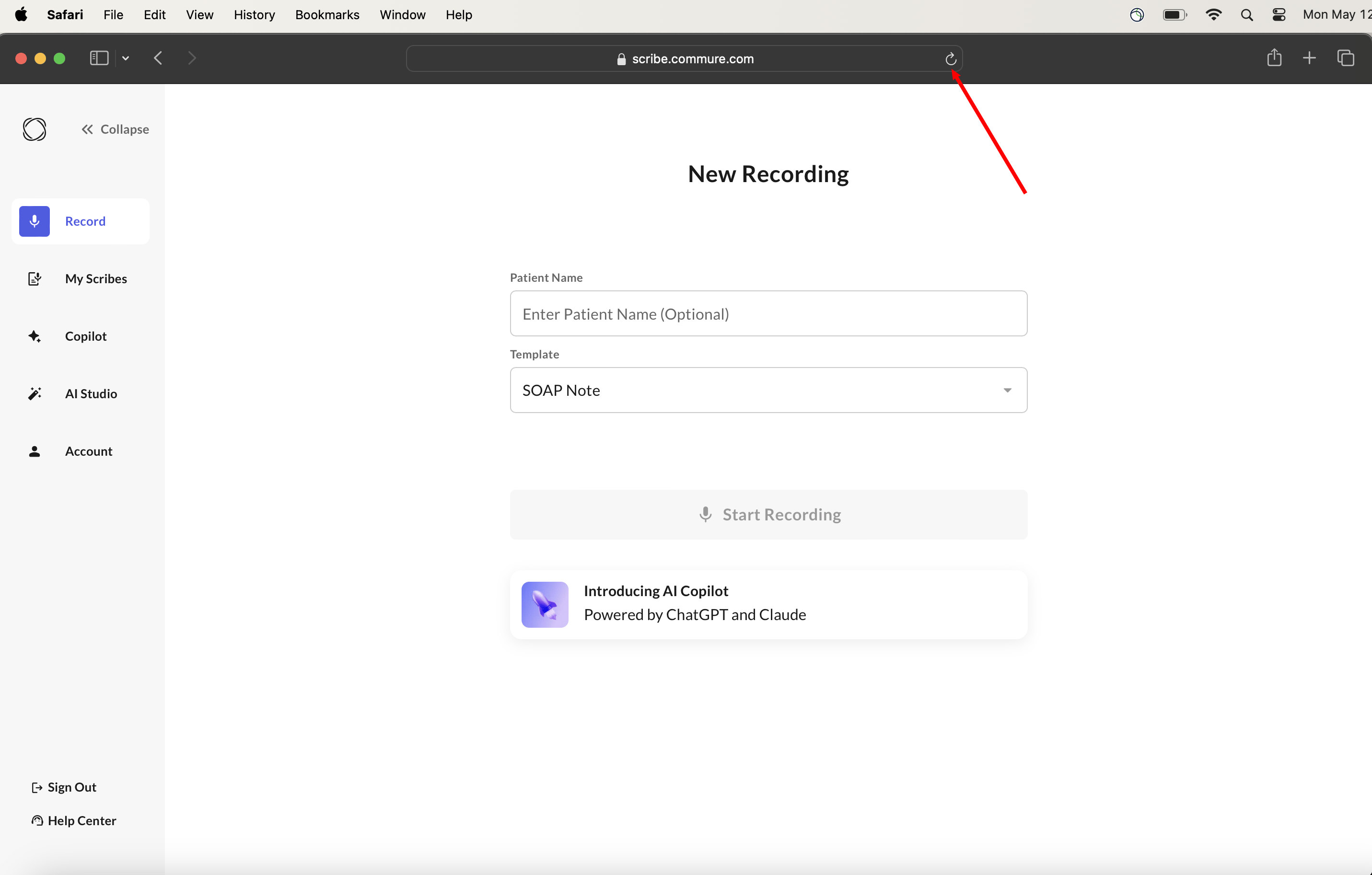
 **7. Make sure to refresh the page to apply the change**
 ***
## Safari on iPad
**1. If you get a "Microphone access not granted" error, then you may have disabled mic permissions**
***
## Safari on iPad
**1. If you get a "Microphone access not granted" error, then you may have disabled mic permissions**
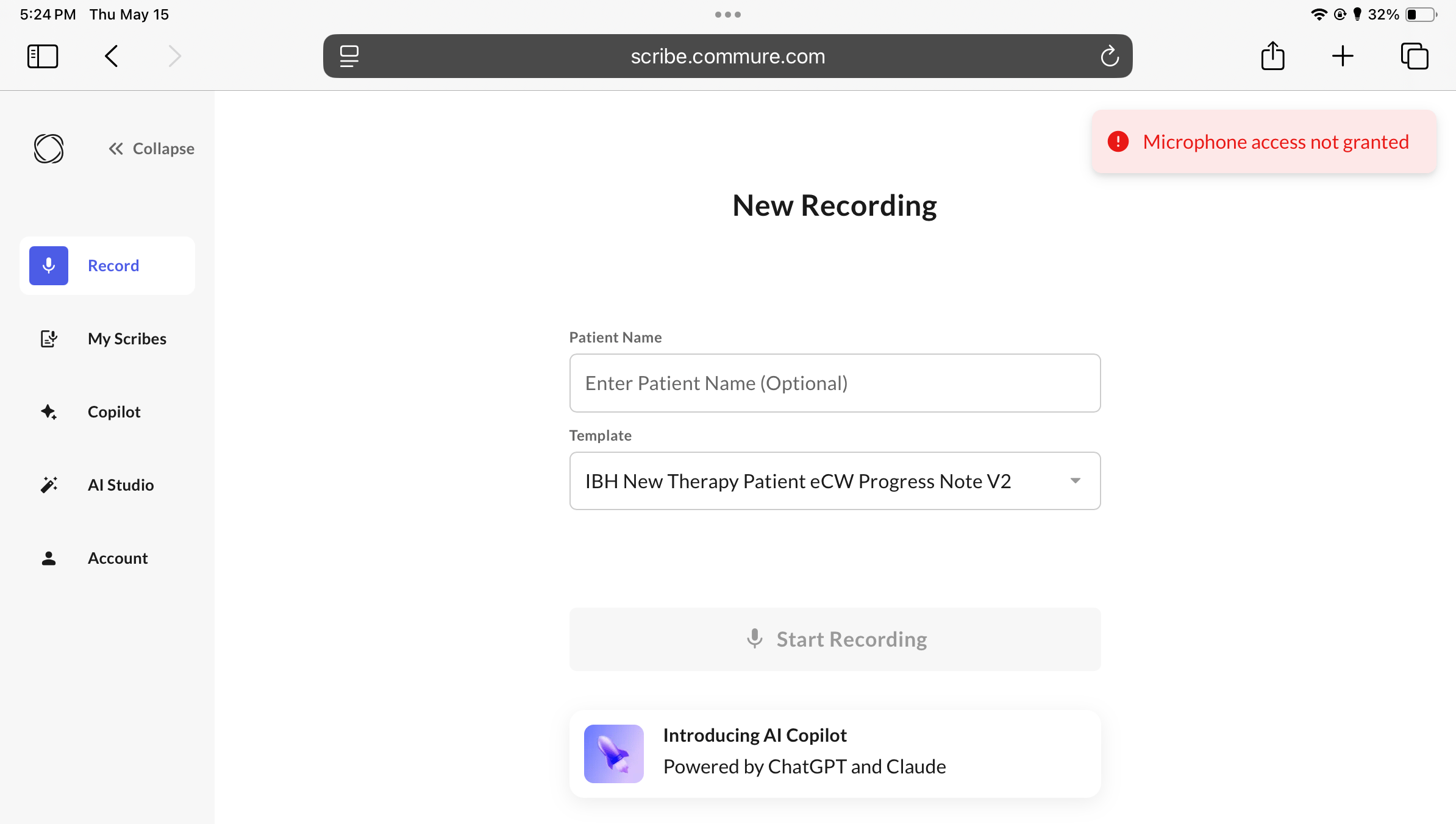 **2. Navigate to the Settings app on your iPad**
 **3. Search Safari in the top bar and click on it**
 **4. Scroll down and click on Microphone**
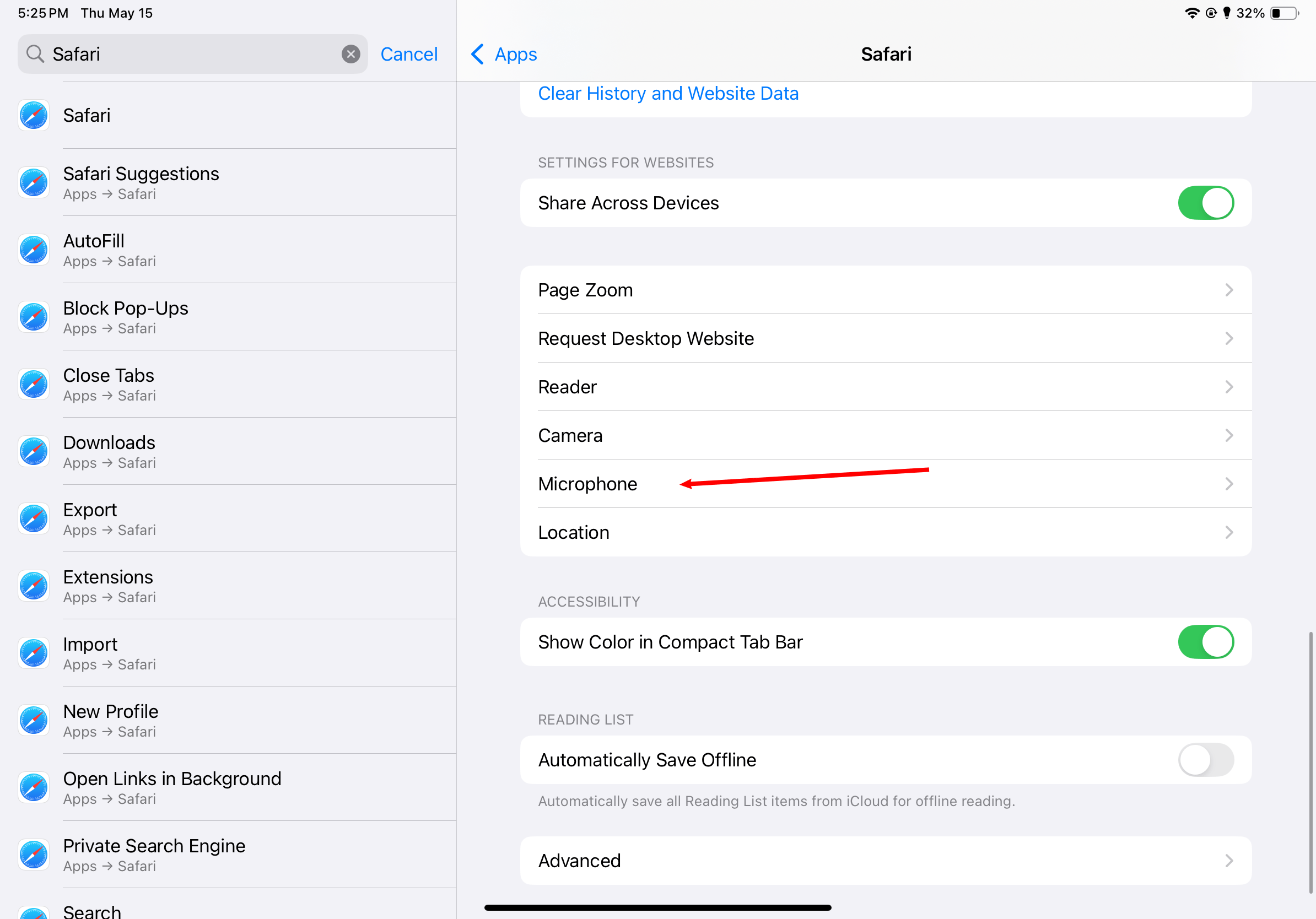 **5. Select Allow**
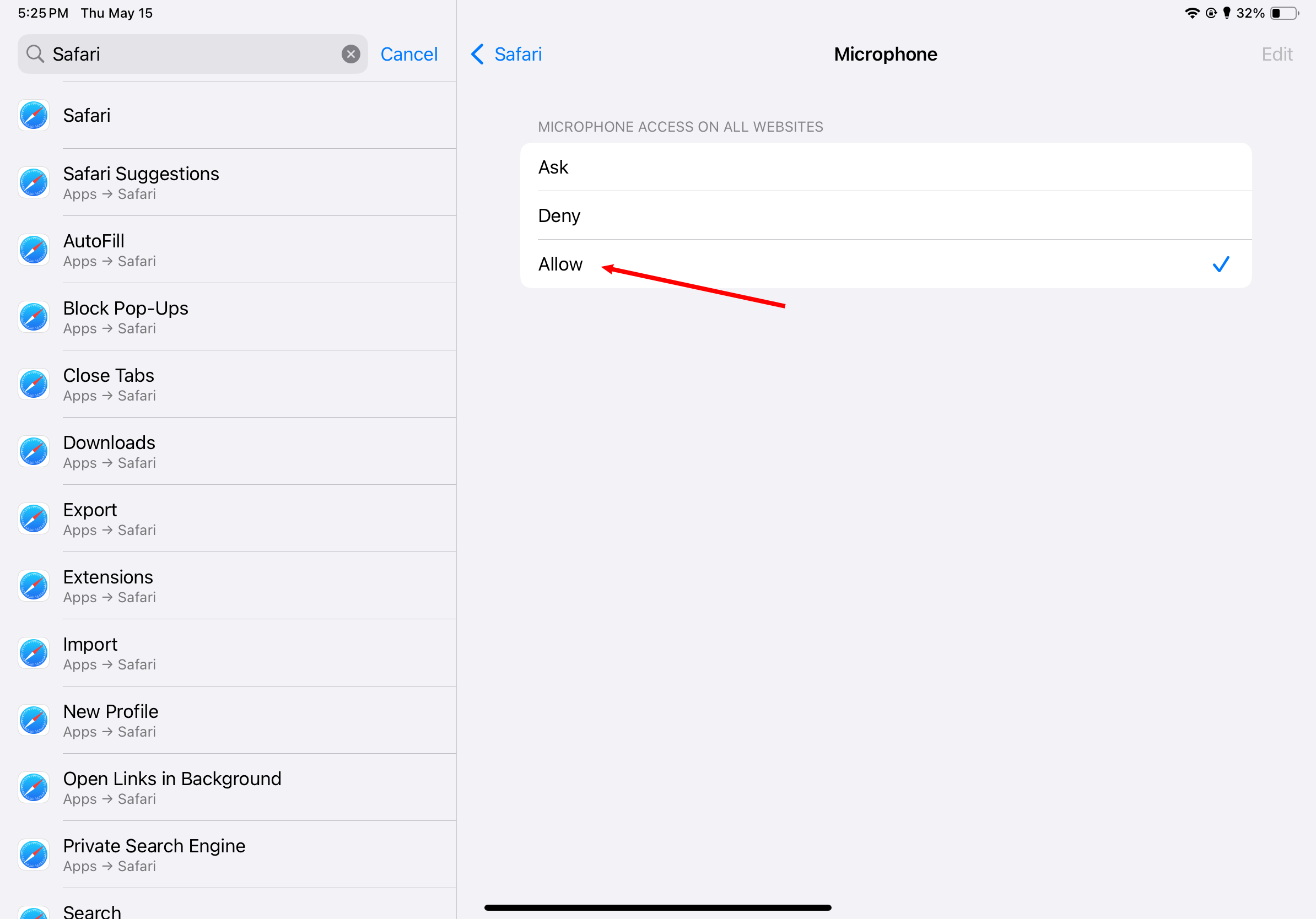 **6. Make sure to refresh the page to apply the change**
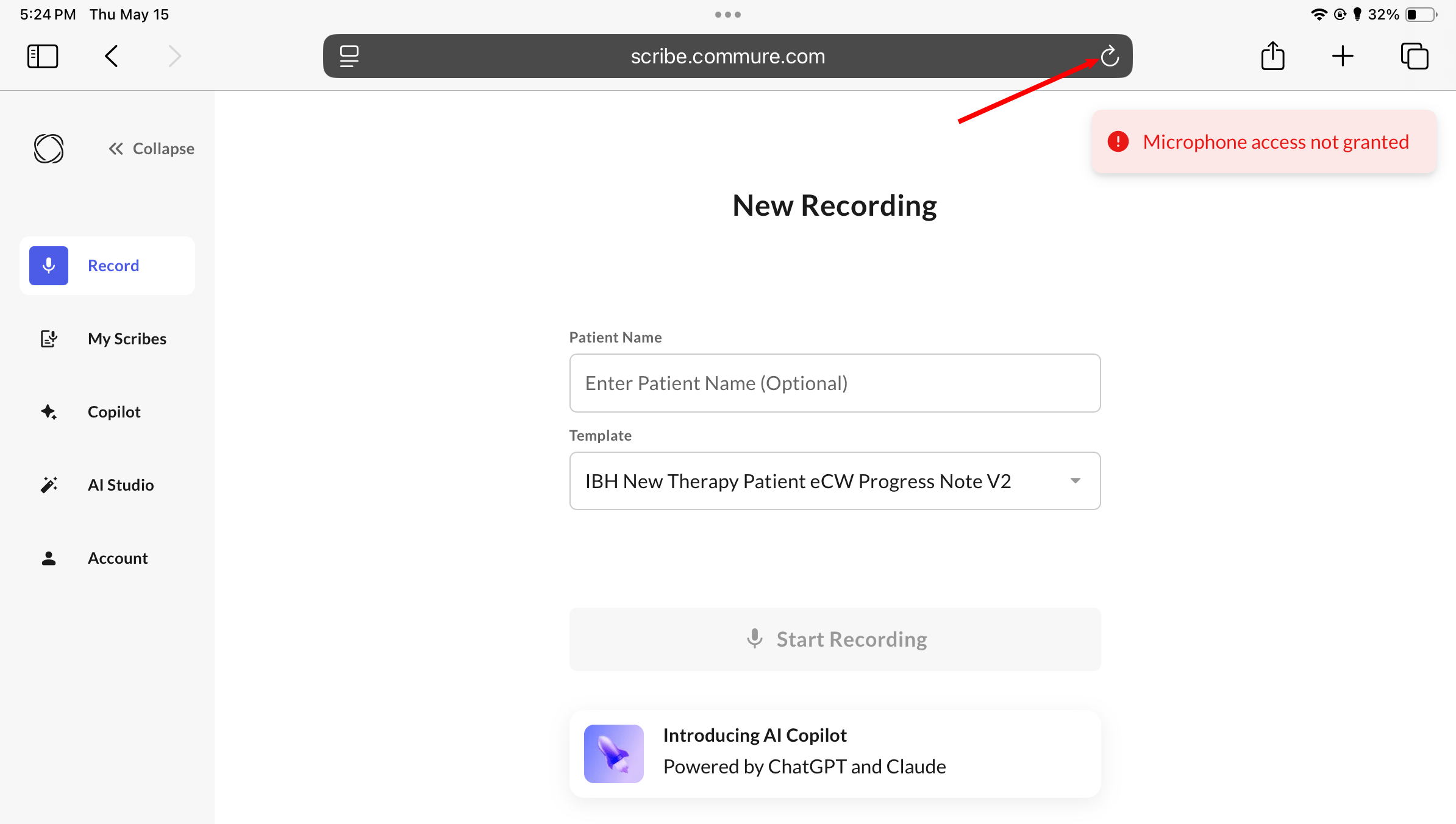 **1. If you get a "Microphone access not granted" error, then you may have disabled mic permissions**
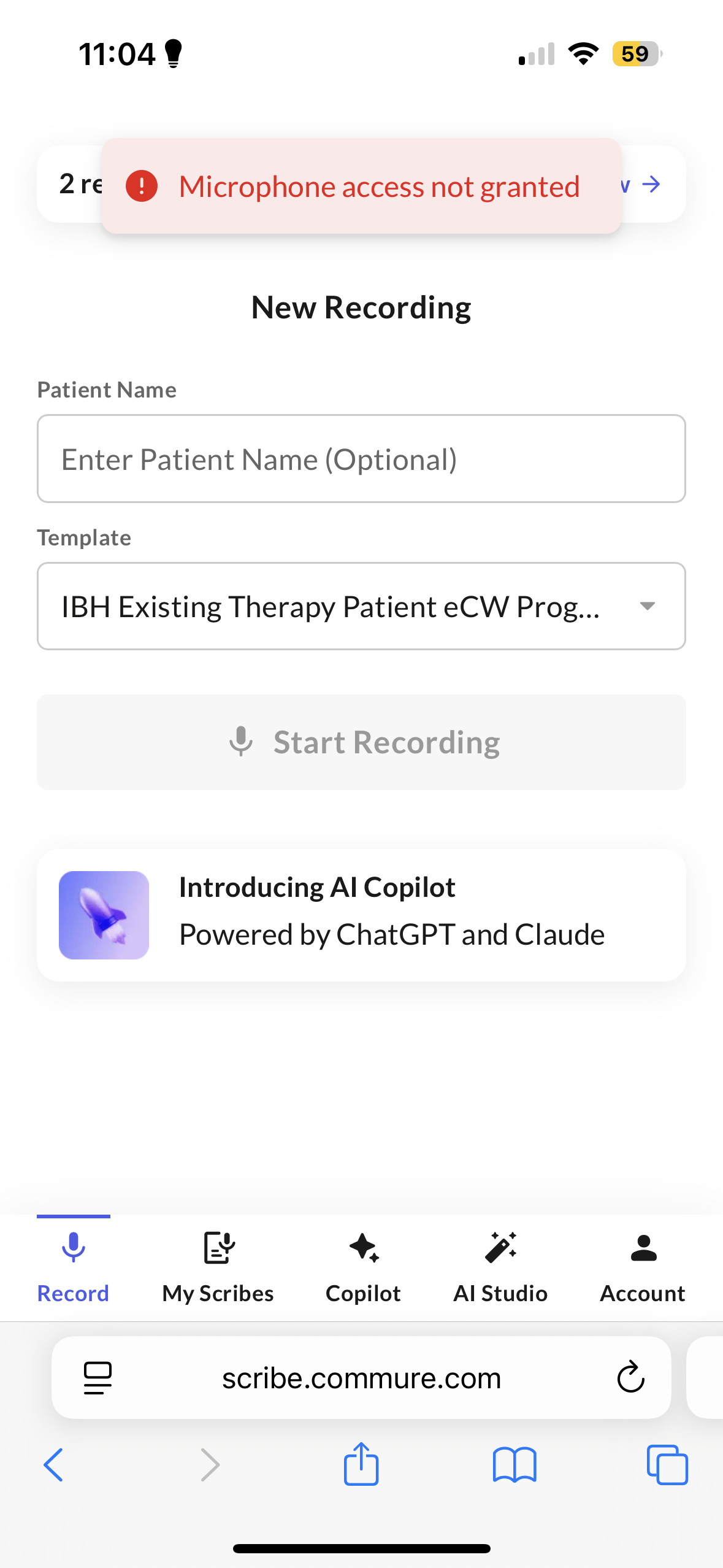 **2. Navigate to the Settings app on your iPhone**
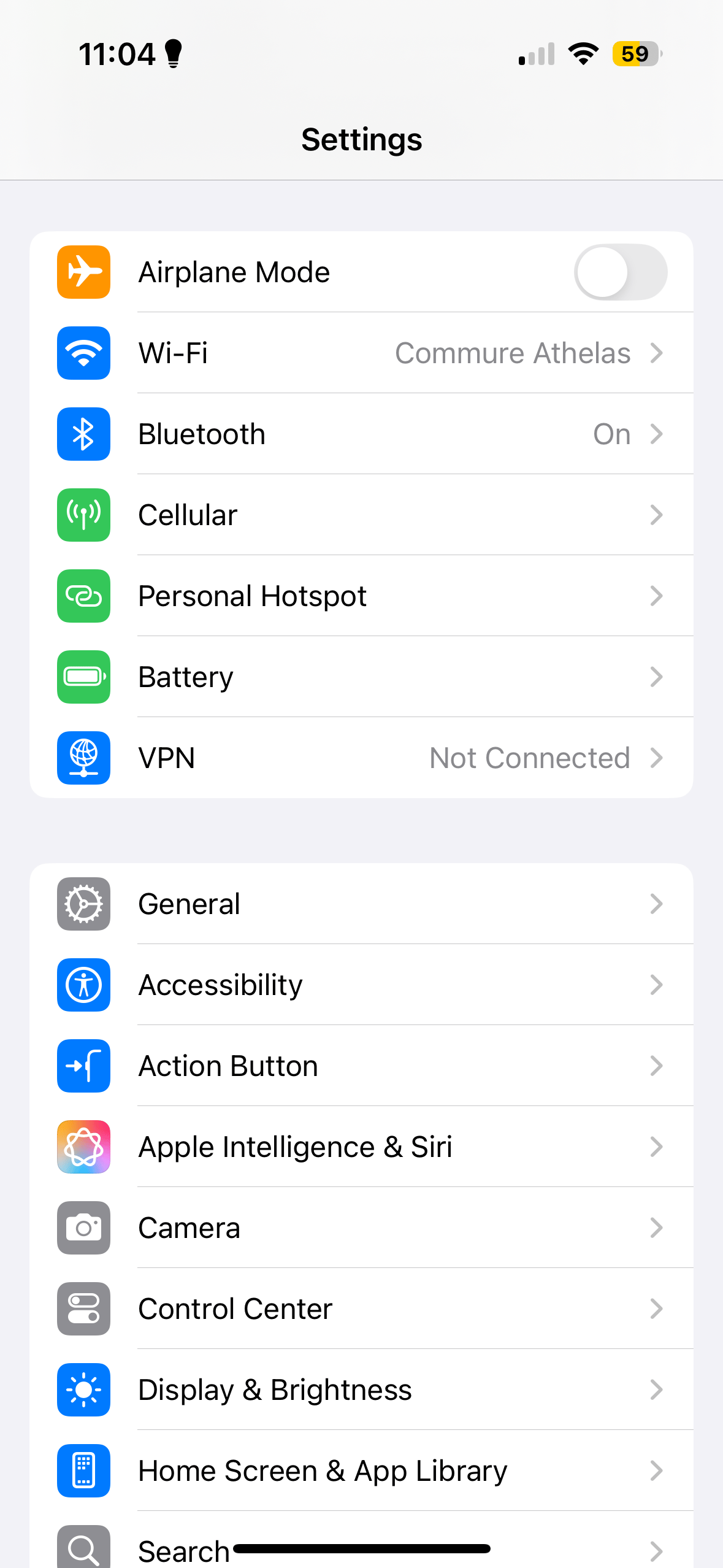 **3. Search Safari in the top bar and click on it**
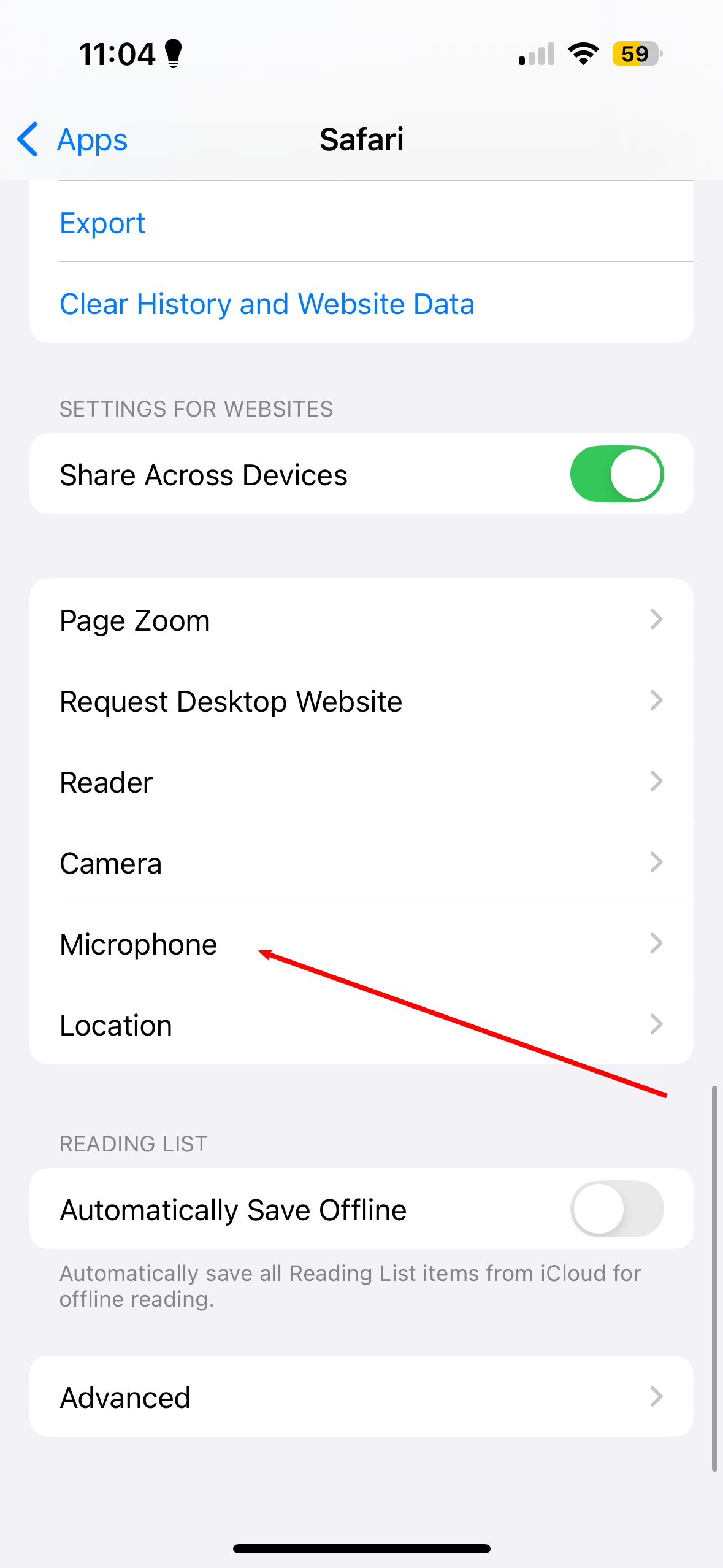
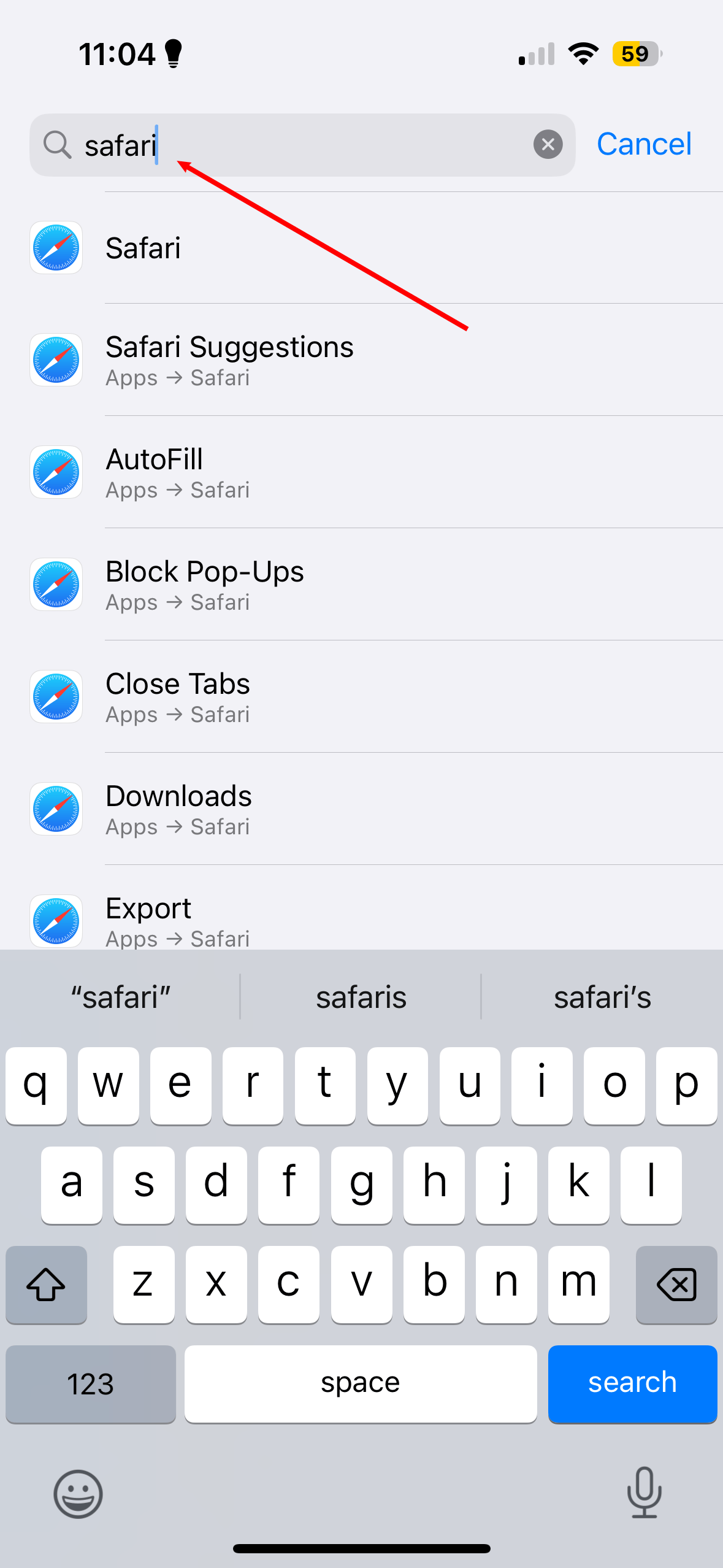 **4. Scroll down all the way to the bottom**
 **5. Click on Microphone**
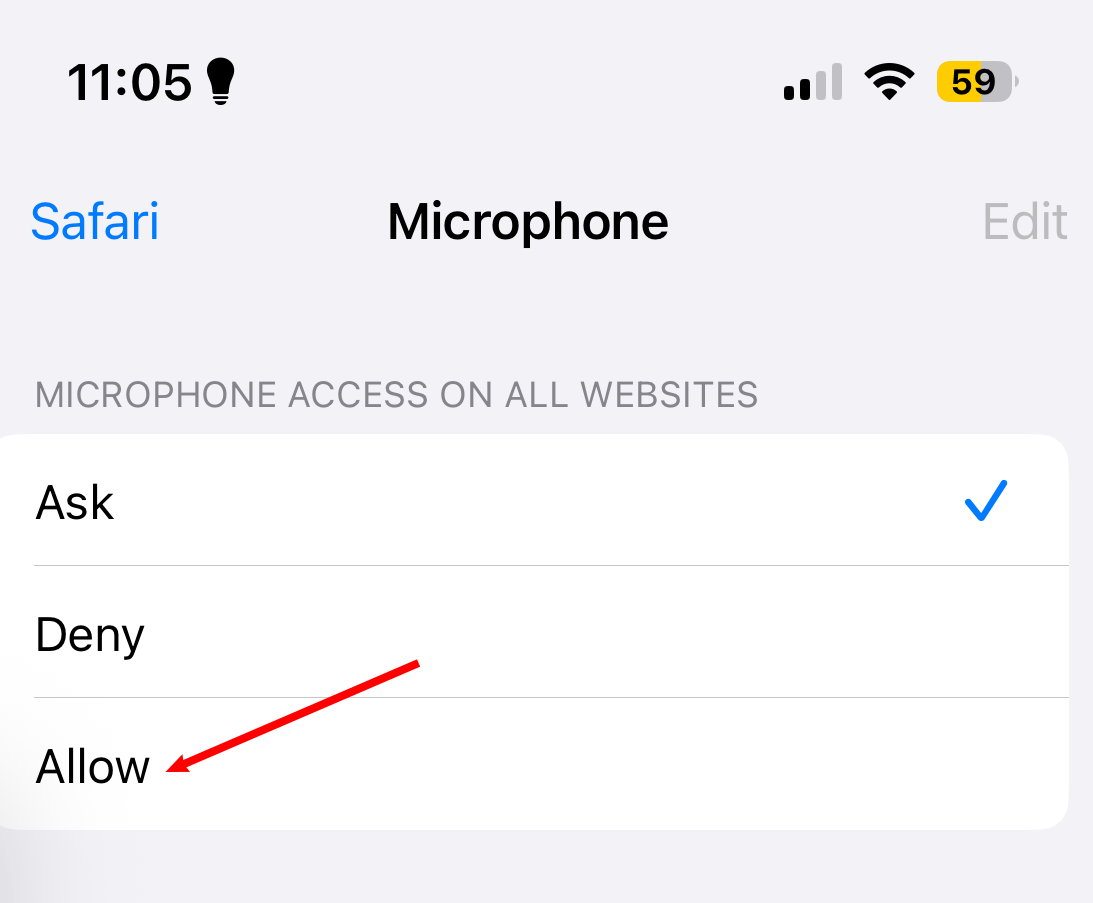
 **6. Select Allow**
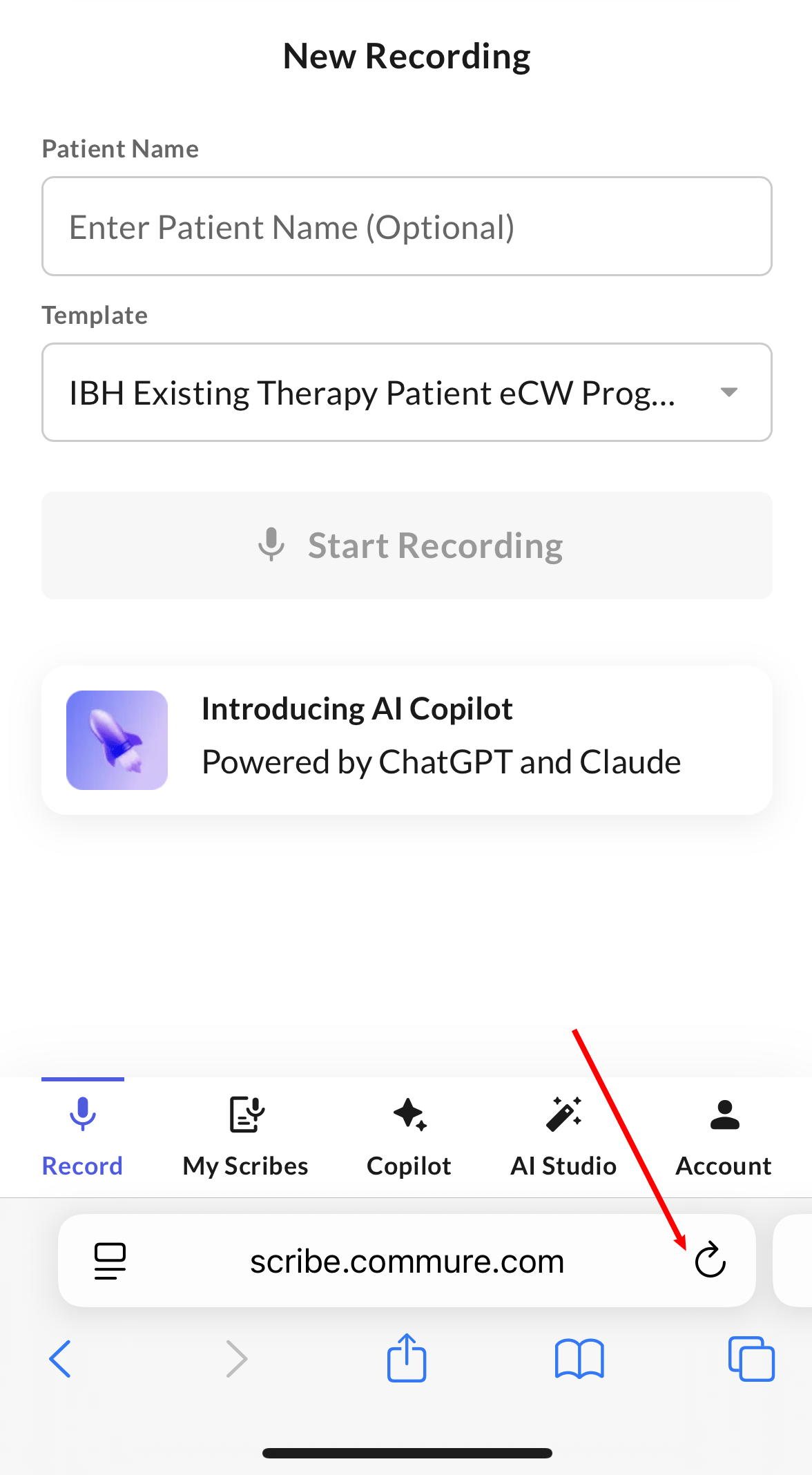
 **7. Make sure to refresh the page to apply the change**
 **1. If you get a "Microphone access not granted" error, then you may have disabled mic permissions**
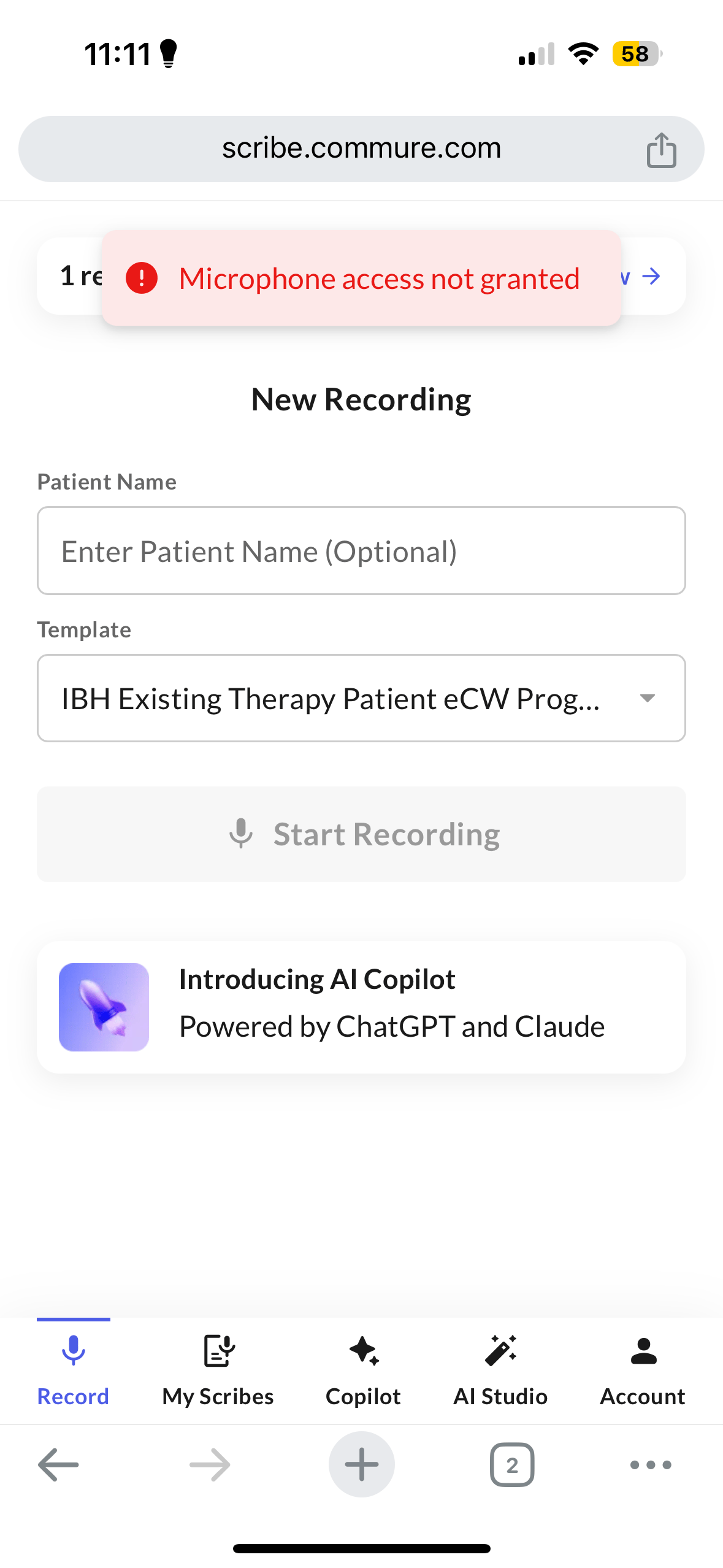 **2. Navigate to the Settings app on your iPhone**
**3. Search Chrome in the top bar and click on it**
**2. Navigate to the Settings app on your iPhone**
**3. Search Chrome in the top bar and click on it**
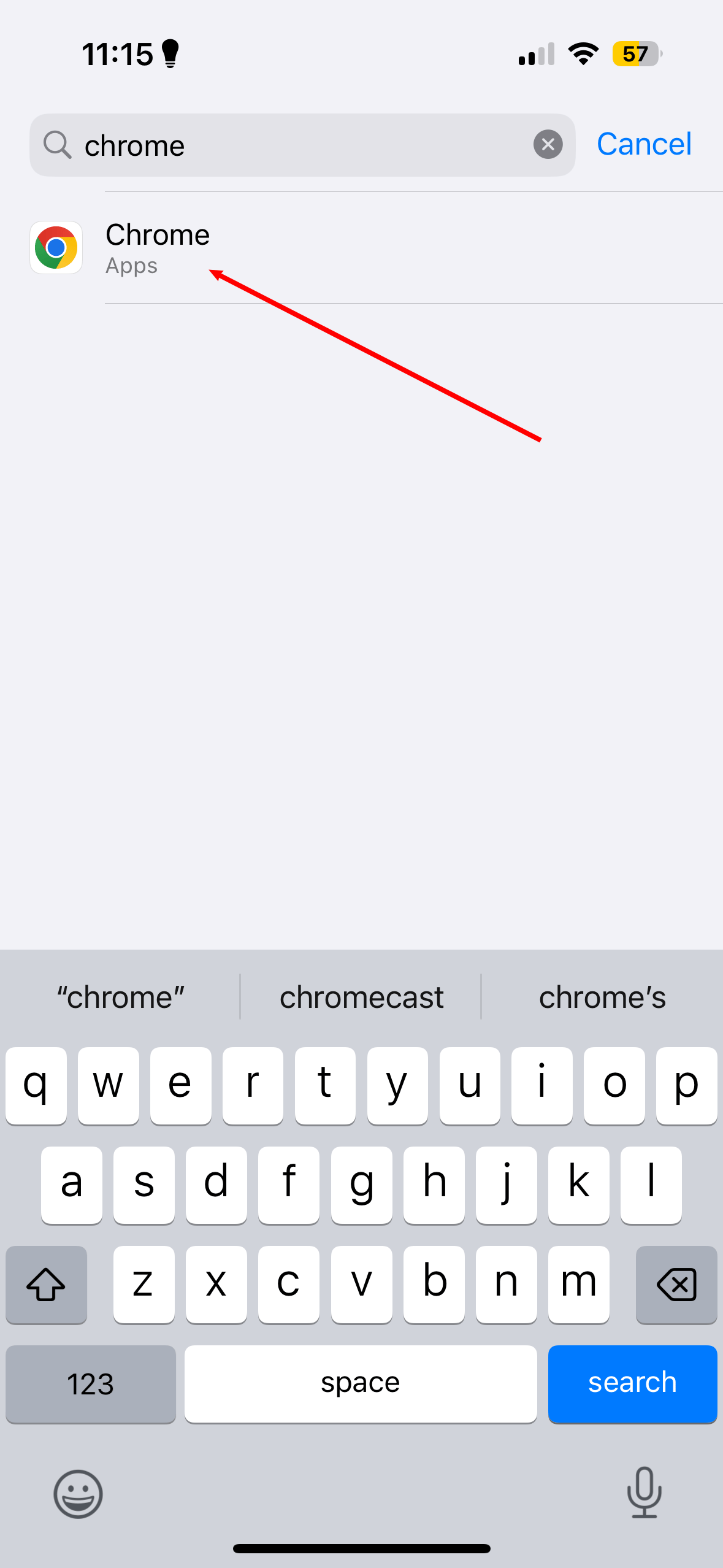 **4. Make sure the microphone setting is enabled (should be a green toggle)**
 **5. Go back to Chrome and click on the 3 dots in the bottom right**
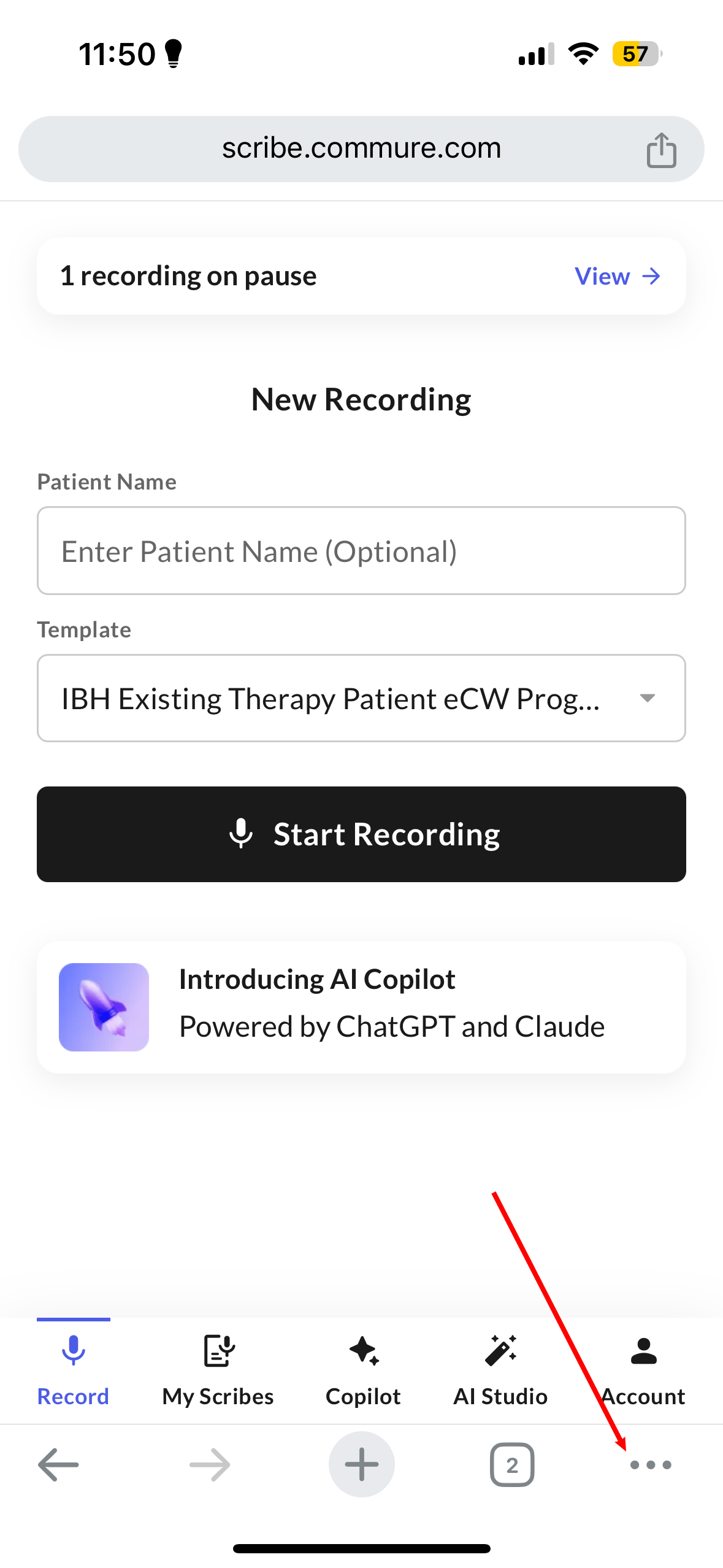 **6. Make sure to refresh the page to apply the change**
 If a paused recording seems to have disappeared, it's likely still there — just on a different device or app than the one you're currently checking.
A paused recording is stored locally on the device and app where it was started — not on Commure's servers yet.
It will only appear on that same device and app until you end the recording and it fully uploads.
Paused recordings are kept locally for up to 14 days. After that, they may be cleared by the device's storage management.
If a paused recording seems to have disappeared, it's likely still there — just on a different device or app than the one you're currently checking.
A paused recording is stored locally on the device and app where it was started — not on Commure's servers yet.
It will only appear on that same device and app until you end the recording and it fully uploads.
Paused recordings are kept locally for up to 14 days. After that, they may be cleared by the device's storage management.
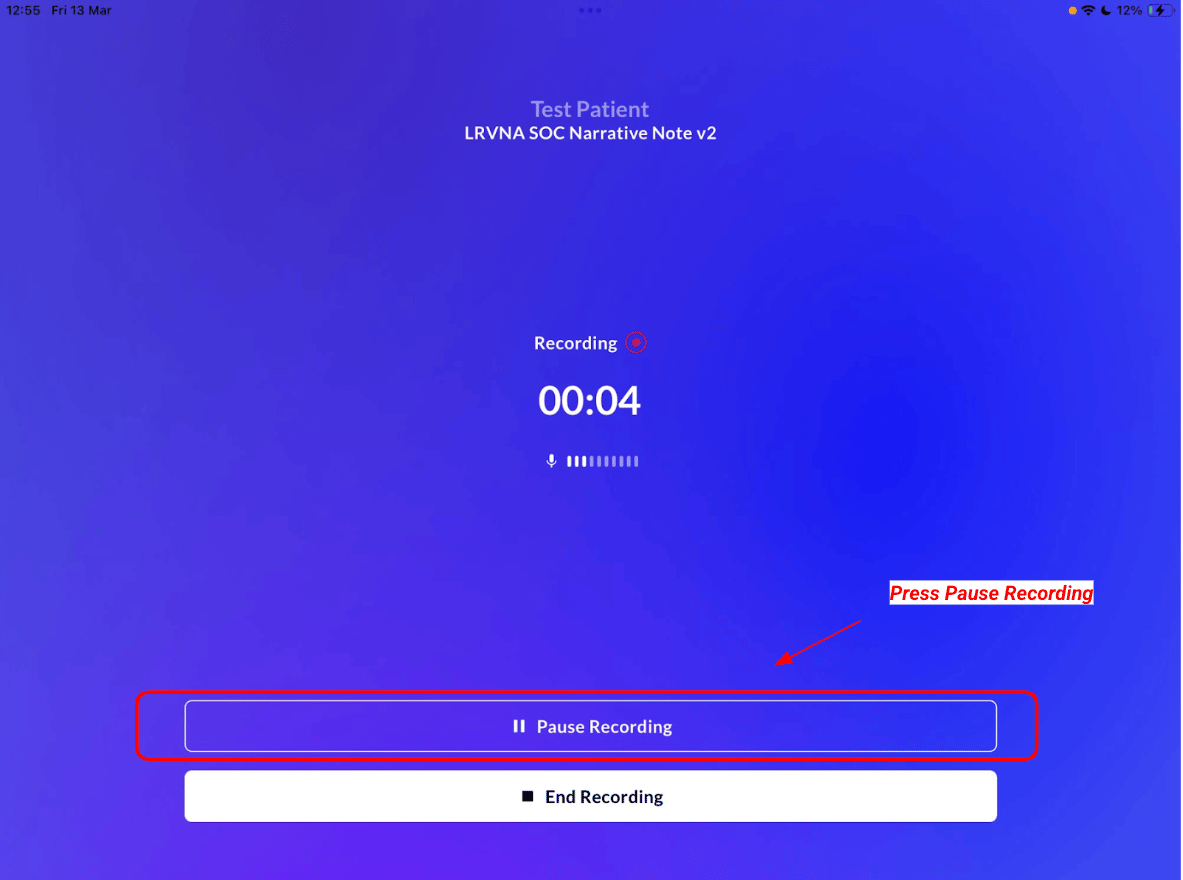 Once a recording is ended and fully uploaded, it becomes available across all devices logged into your account.
If you're switching between the web app and a mobile app, return to the same device and app you used to start the recording to find a paused session.
If a scribe is stuck on **Pending Upload**, how you fix it depends on how long it's been stuck.
**Recently stuck (same day) — usually recoverable:**
Look for the blue **Upload Again** button next to the scribe.
Click it from the **same device and app** you originally used to record — this is required for the retry to work.
Once a recording is ended and fully uploaded, it becomes available across all devices logged into your account.
If you're switching between the web app and a mobile app, return to the same device and app you used to start the recording to find a paused session.
If a scribe is stuck on **Pending Upload**, how you fix it depends on how long it's been stuck.
**Recently stuck (same day) — usually recoverable:**
Look for the blue **Upload Again** button next to the scribe.
Click it from the **same device and app** you originally used to record — this is required for the retry to work.
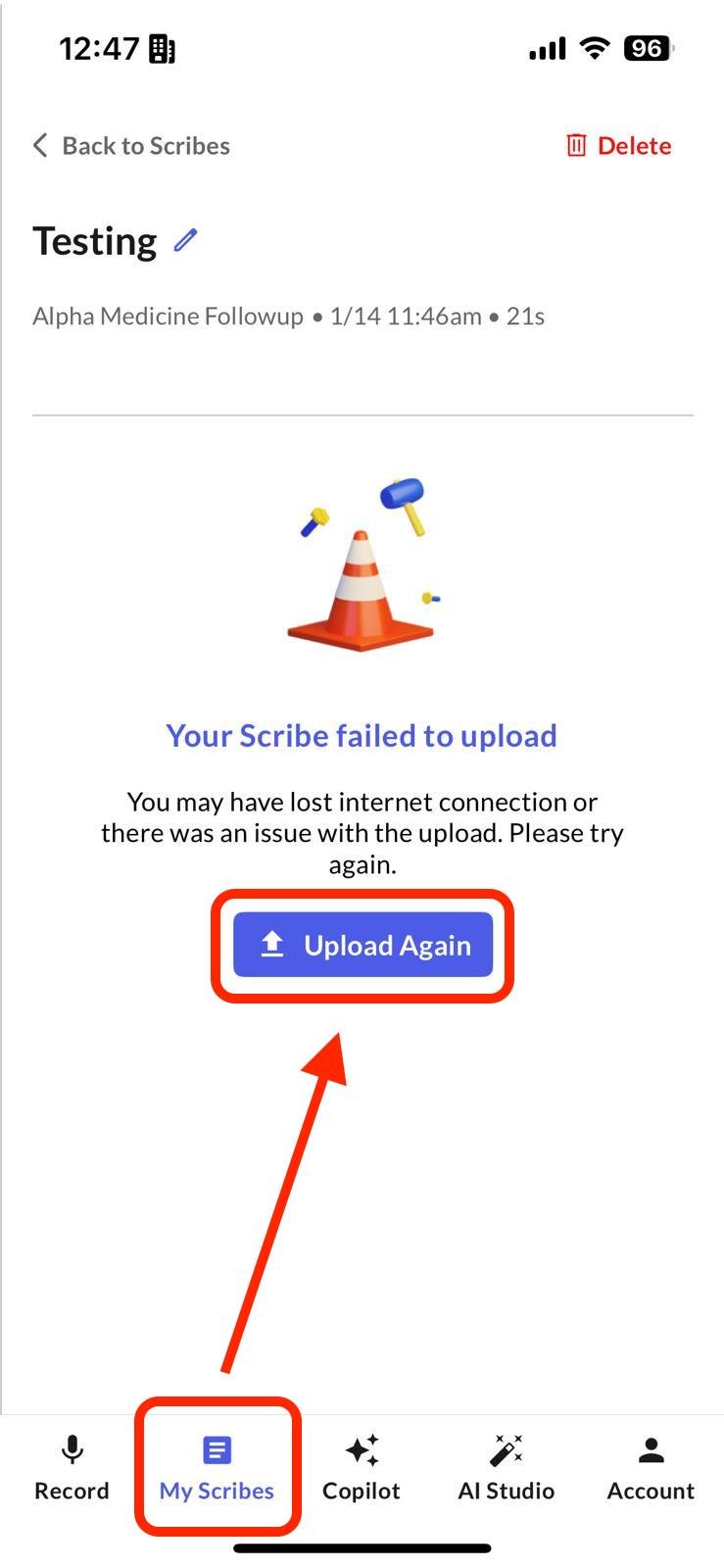 Pending uploads are usually caused by a network interruption or the app being backgrounded during upload.
**Stuck for an extended period (multiple days):**
If a recording has been pending for an extended period, the local audio file has likely already been cleared by your device's storage management system. The Upload Again button may error or do nothing, and the recording usually can't be recovered.
To avoid this in the future:
* Make sure you have a stable connection when finishing a recording, and confirm the upload progress bar reaches 100% before closing the app.
* Check your scribes list right after ending a recording to confirm it shows as "In Progress," not "Pending."
* Don't leave a paused or pending recording on your device for more than 24 hours.
If your note didn't generate, shows an error, or seems stuck on processing, here's what to check.
**Common causes:**
* A long period of silence at the start or in the middle of the recording
* A phone call coming in during the recording, which interrupts audio capture
* The app being backgrounded during recording (Android) or during upload
* The microphone not capturing audio
Pending uploads are usually caused by a network interruption or the app being backgrounded during upload.
**Stuck for an extended period (multiple days):**
If a recording has been pending for an extended period, the local audio file has likely already been cleared by your device's storage management system. The Upload Again button may error or do nothing, and the recording usually can't be recovered.
To avoid this in the future:
* Make sure you have a stable connection when finishing a recording, and confirm the upload progress bar reaches 100% before closing the app.
* Check your scribes list right after ending a recording to confirm it shows as "In Progress," not "Pending."
* Don't leave a paused or pending recording on your device for more than 24 hours.
If your note didn't generate, shows an error, or seems stuck on processing, here's what to check.
**Common causes:**
* A long period of silence at the start or in the middle of the recording
* A phone call coming in during the recording, which interrupts audio capture
* The app being backgrounded during recording (Android) or during upload
* The microphone not capturing audio
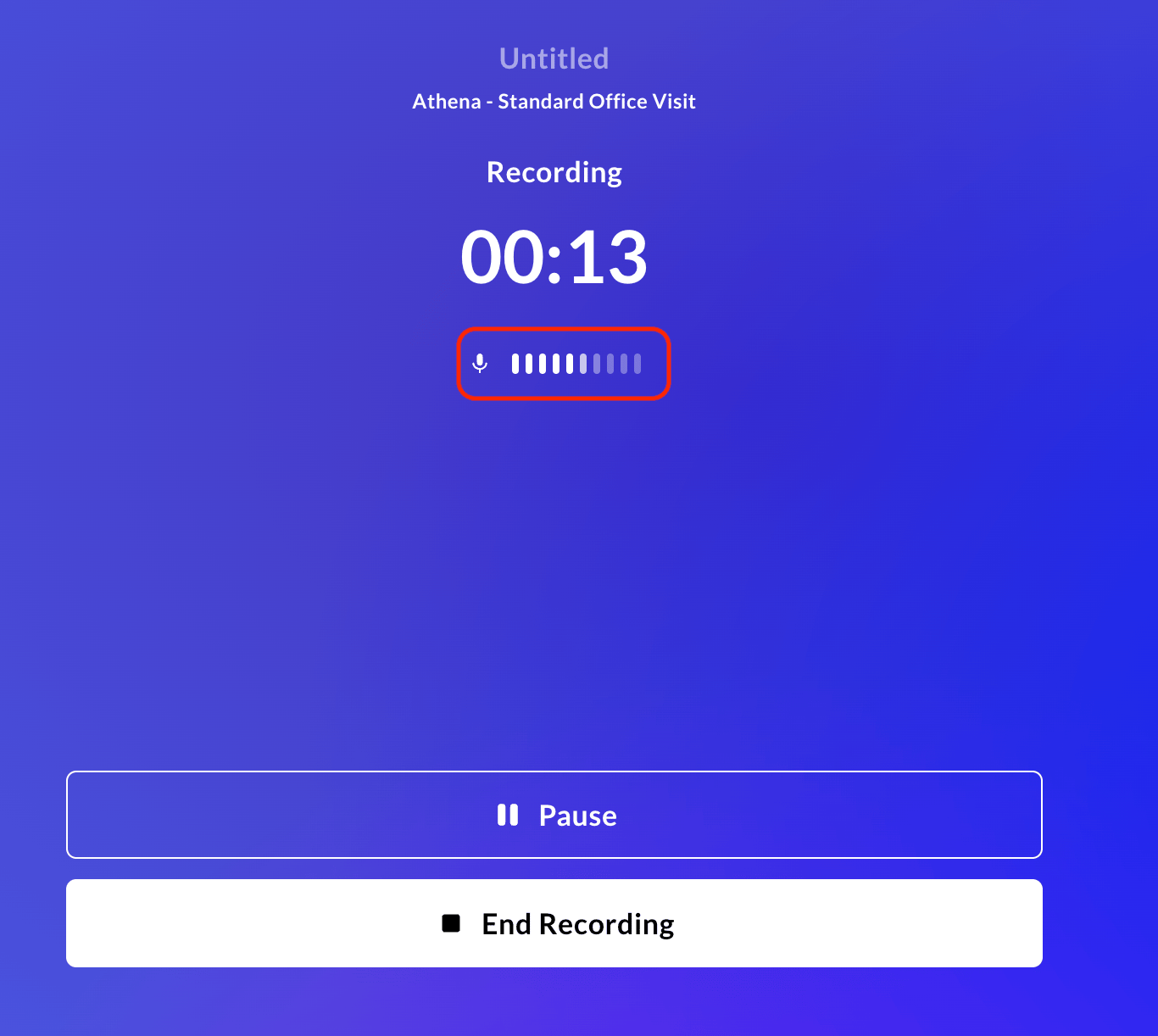 Watching the audio level bar move during a recording is a good way to confirm your microphone is actually being captured.
If you can't find a scribe in your list, it's often just delayed rather than lost.
If there was a connectivity issue during or after the recording, the platform automatically retries the upload several times. Refresh your browser or app once a stable connection is available.
Older scribes load further down the list as you scroll — it may simply be further down than expected.
This refreshes your scribes list.
When using the search bar, scroll down until the scribe is visible in your list first — search only works on scribes that have already loaded.
Watching the audio level bar move during a recording is a good way to confirm your microphone is actually being captured.
If you can't find a scribe in your list, it's often just delayed rather than lost.
If there was a connectivity issue during or after the recording, the platform automatically retries the upload several times. Refresh your browser or app once a stable connection is available.
Older scribes load further down the list as you scroll — it may simply be further down than expected.
This refreshes your scribes list.
When using the search bar, scroll down until the scribe is visible in your list first — search only works on scribes that have already loaded.
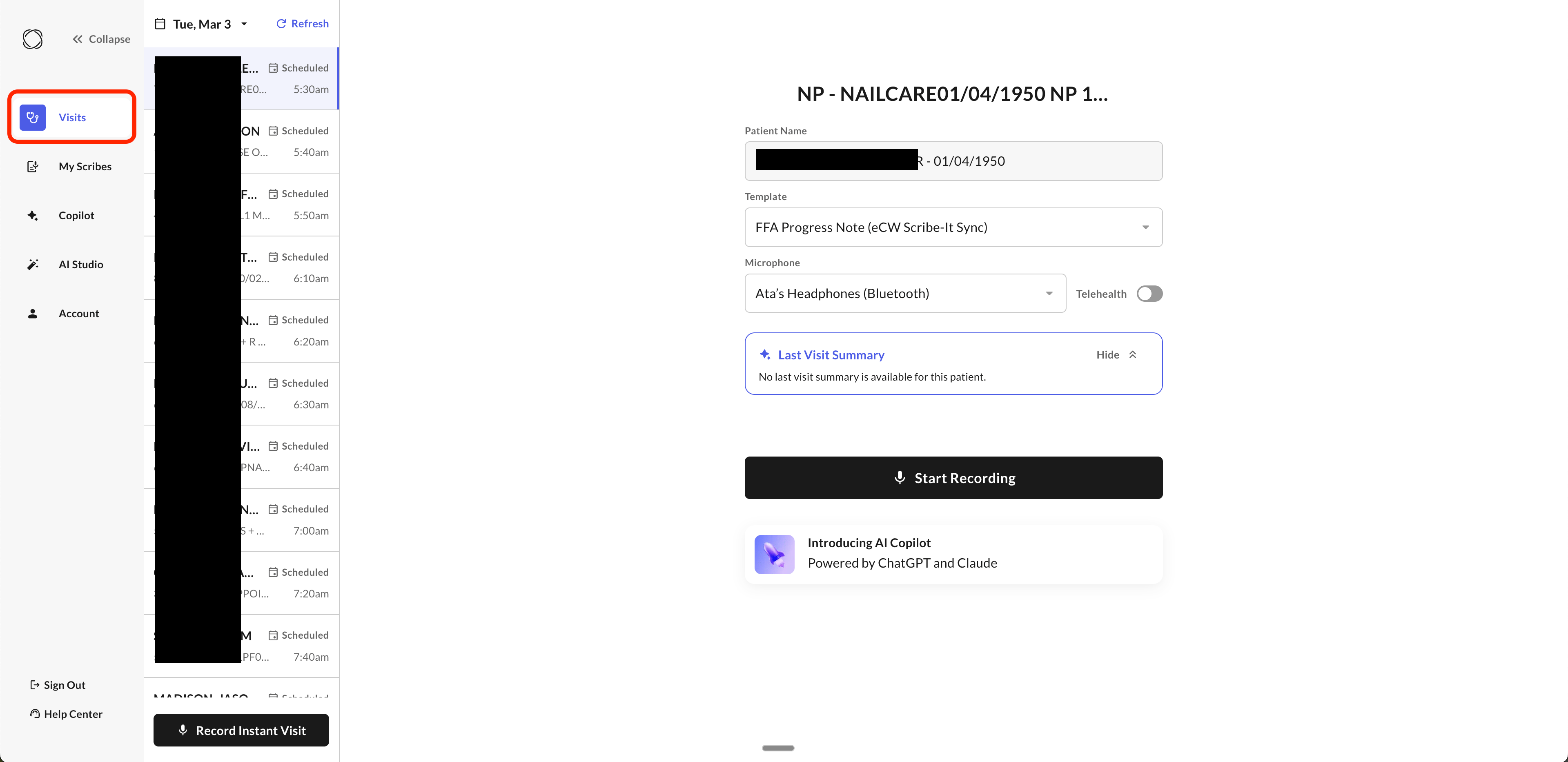 If part of your note is missing or the last section seems incomplete, it's usually because the note generation hit its processing limit.
**Why this happens:** Notes are generated within a token limit. A few things can push a note past that limit, cutting off the end:
* A long or highly detailed template with many sections
* The **Citations** feature being enabled, which uses additional space in the note
* An unusually long individual encounter
**How to fix it:**
This is the quickest fix and frees up space for the full note to generate.
If your template has many long or complex sections, trimming it down helps ensure every section generates consistently.
If part of your note is missing or the last section seems incomplete, it's usually because the note generation hit its processing limit.
**Why this happens:** Notes are generated within a token limit. A few things can push a note past that limit, cutting off the end:
* A long or highly detailed template with many sections
* The **Citations** feature being enabled, which uses additional space in the note
* An unusually long individual encounter
**How to fix it:**
This is the quickest fix and frees up space for the full note to generate.
If your template has many long or complex sections, trimming it down helps ensure every section generates consistently.
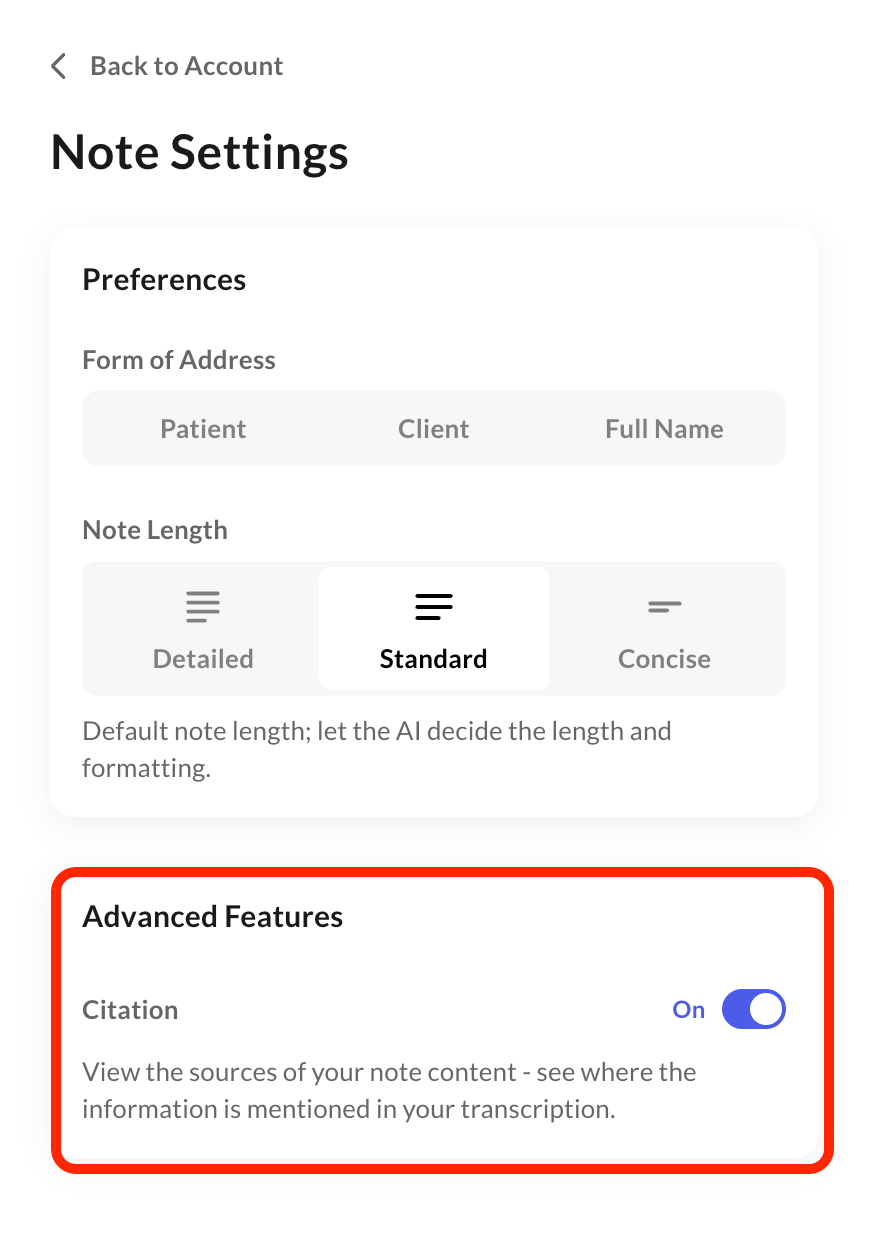 You can review the Transcript tab on the affected scribe to confirm what was actually captured during the visit, even if the note itself is incomplete.
To fill in a missing section after the fact, open the scribe, click **AI Actions > Add Context**, then dictate or type the missing information and click **Regenerate**. Add Context isn't available on iOS yet.
If a generated note shows an unexpected date — often defaulting to January 2026 — this is expected behavior, not a bug.
**Why this happens:** The note generation model doesn't have access to the current date or to the date shown on your **My Scribes** page — that date is generated separately, by the website interface, and isn't shared with the model. When no date is mentioned during the recording, the model defaults to the most recent date it's aware of.
**How to fix it:** State the complete date — day, month, and year — out loud during the recording. The model will use whatever date it hears in the conversation.
Commure Scribe doesn't currently support downloading or exporting notes or recordings as files. Since scribes contain patient information, we're also unable to send files via email.
**What you can do instead:**
Open any scribe, go to the Note or Transcript tab, and copy the text to paste into your EHR or another document.
Replay the audio directly within the scribe on the website.
You can review the Transcript tab on the affected scribe to confirm what was actually captured during the visit, even if the note itself is incomplete.
To fill in a missing section after the fact, open the scribe, click **AI Actions > Add Context**, then dictate or type the missing information and click **Regenerate**. Add Context isn't available on iOS yet.
If a generated note shows an unexpected date — often defaulting to January 2026 — this is expected behavior, not a bug.
**Why this happens:** The note generation model doesn't have access to the current date or to the date shown on your **My Scribes** page — that date is generated separately, by the website interface, and isn't shared with the model. When no date is mentioned during the recording, the model defaults to the most recent date it's aware of.
**How to fix it:** State the complete date — day, month, and year — out loud during the recording. The model will use whatever date it hears in the conversation.
Commure Scribe doesn't currently support downloading or exporting notes or recordings as files. Since scribes contain patient information, we're also unable to send files via email.
**What you can do instead:**
Open any scribe, go to the Note or Transcript tab, and copy the text to paste into your EHR or another document.
Replay the audio directly within the scribe on the website.
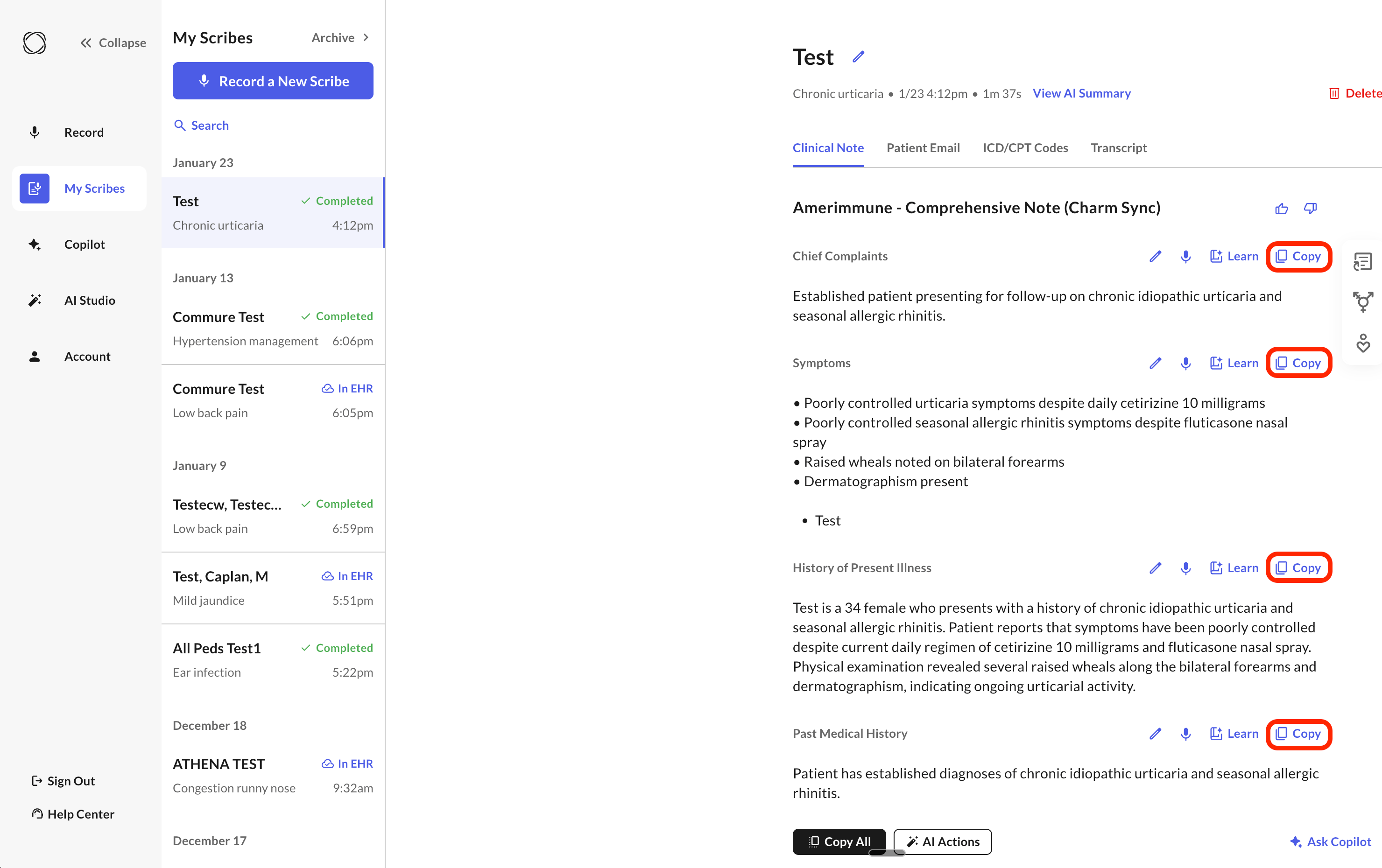 Copying and pasting into your EHR or a document is the recommended workflow for saving notes outside of Commure Scribe.
Still stuck after trying the steps above? Contact our support team at [scribe-support@commure.com](mailto:scribe-support@commure.com) with the patient name or initials and the approximate date/time of the recording.
Copying and pasting into your EHR or a document is the recommended workflow for saving notes outside of Commure Scribe.
Still stuck after trying the steps above? Contact our support team at [scribe-support@commure.com](mailto:scribe-support@commure.com) with the patient name or initials and the approximate date/time of the recording.