> ## Documentation Index
> Fetch the complete documentation index at: https://docs.scribe.commure.com/llms.txt
> Use this file to discover all available pages before exploring further.
# Telehealth & Video Calls
> Use Commure Scribe to capture audio during telehealth visits over Zoom or Google Meet.
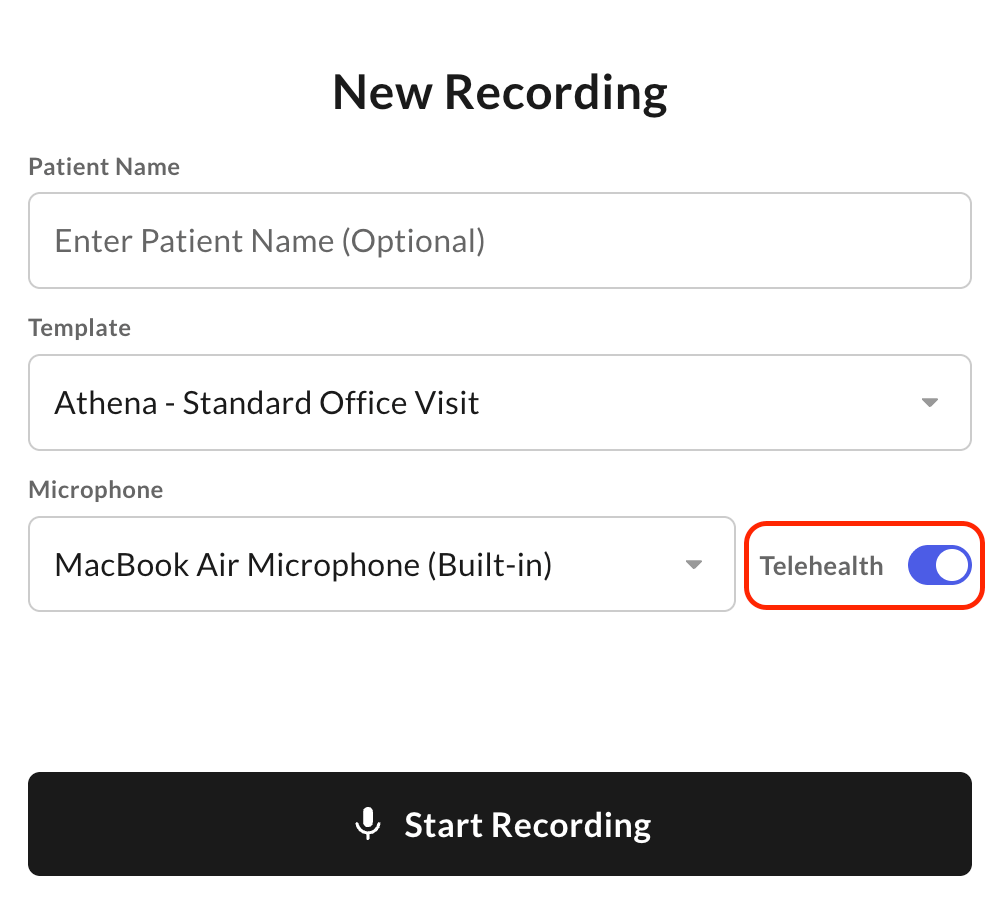
For telehealth visits, use the **Commure Scribe Chrome Extension** to capture audio from both sides of the call.
[Download the Chrome Extension](https://chromewebstore.google.com/detail/acibipghcmphbocinifknaalbbhhdacm) if you haven't already.
Open the extension on the **same browser tab** as your video call. This ensures both the provider's and patient's audio are captured.
 ## Supported Platforms
* **Zoom** and **Google Meet** in Chrome — supported via the Chrome Extension
* **FaceTime** — not supported, since it takes full control of the microphone
Prefer not to use the extension? Record on a separate mobile device with the call audio set to **speaker mode**, and Commure Scribe will pick up the conversation that way instead.
## Supported Platforms
* **Zoom** and **Google Meet** in Chrome — supported via the Chrome Extension
* **FaceTime** — not supported, since it takes full control of the microphone
Prefer not to use the extension? Record on a separate mobile device with the call audio set to **speaker mode**, and Commure Scribe will pick up the conversation that way instead.