> ## Documentation Index
> Fetch the complete documentation index at: https://docs.scribe.commure.com/llms.txt
> Use this file to discover all available pages before exploring further.
# Correcting Patient Information in a Note
> Fix incorrect patient details or other information in a note after it's already been generated.
If a note contains incorrect information — like a wrong date of birth — you don't need to redo the recording. There are a few ways to fix it, depending on what you need to change.
## Add Context
The most common fix for missing or incorrect details.
Open the affected scribe from **My Scribes**.
Click **AI Actions** and select **Add Context**.
Type or dictate the corrected information.
Click **Regenerate** to produce an updated note that incorporates the correction.
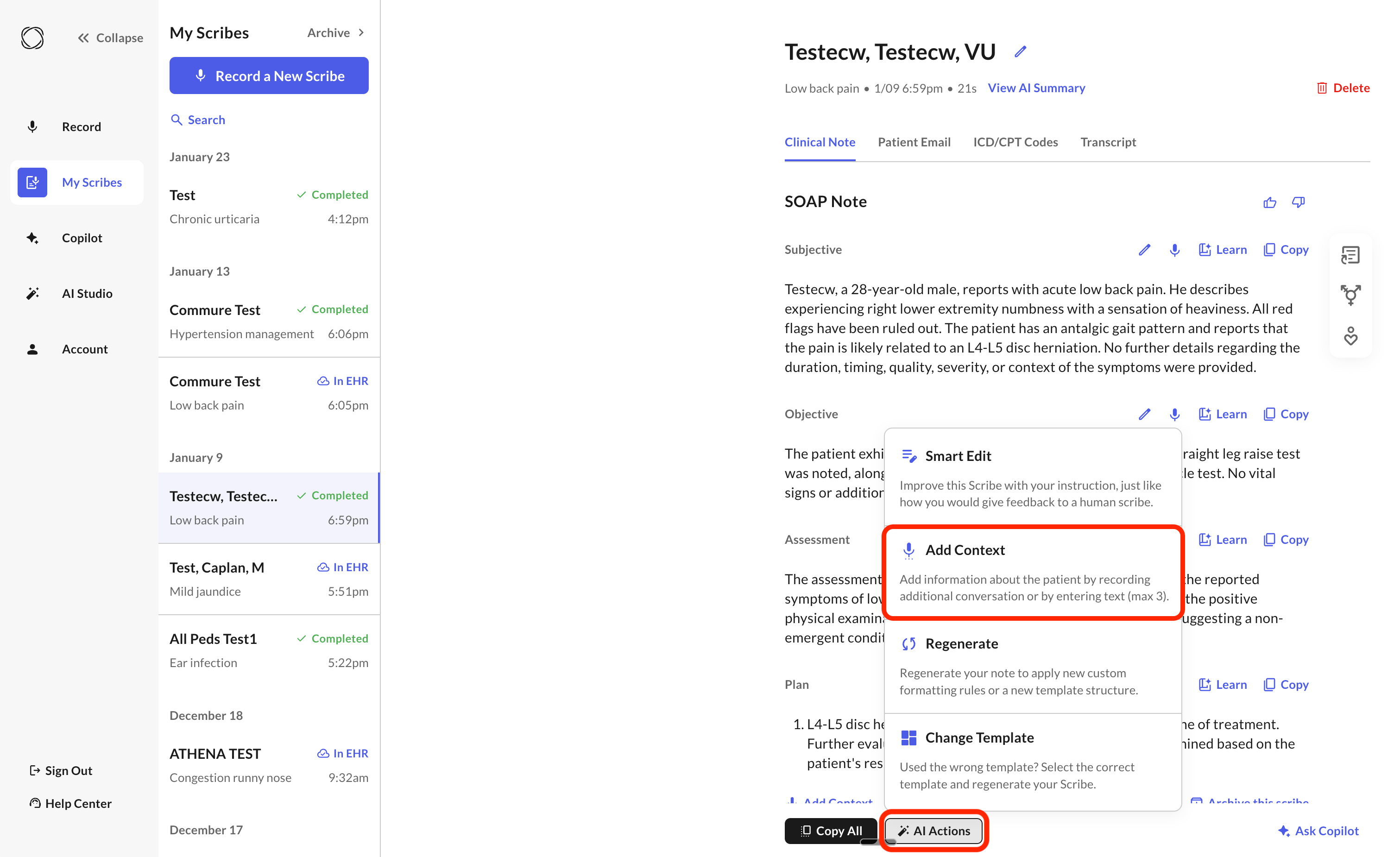 Add Context is not yet available on iOS.
## Other AI Actions
* [**Smart Edit**](/customizing-notes/smart-edit-notes) — make a targeted edit to specific wording without regenerating the whole note.
* [**Regenerate**](/customizing-notes/regenerate-and-change-template) — reprocess the full note from the original recording, useful after changing a template or formatting rule.
Add Context is not yet available on iOS.
## Other AI Actions
* [**Smart Edit**](/customizing-notes/smart-edit-notes) — make a targeted edit to specific wording without regenerating the whole note.
* [**Regenerate**](/customizing-notes/regenerate-and-change-template) — reprocess the full note from the original recording, useful after changing a template or formatting rule.