> ## Documentation Index
> Fetch the complete documentation index at: https://docs.scribe.commure.com/llms.txt
> Use this file to discover all available pages before exploring further.
# Downloading the Chrome Extension
> Bring the power of Commure Scribe to your desktop browser.
Bring the power of Commure Scribe to your desktop browser by downloading the Chrome Extension. Follow these steps to get started:
## 1. Search and Install
* Open the [Chrome Web Store](https://chromewebstore.google.com/) in your Chrome browser.
* Search for **"Commure Scribe"**.
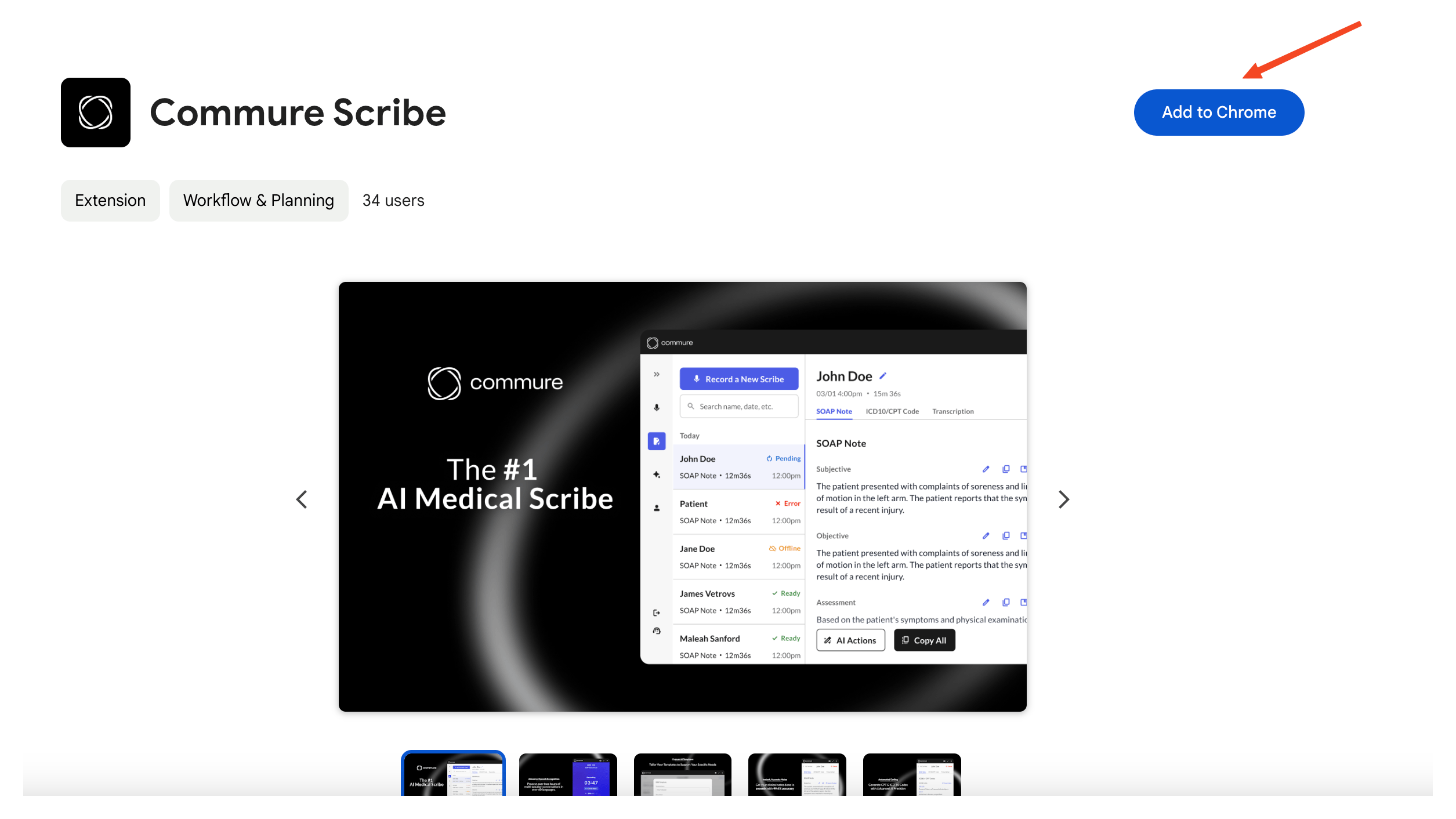
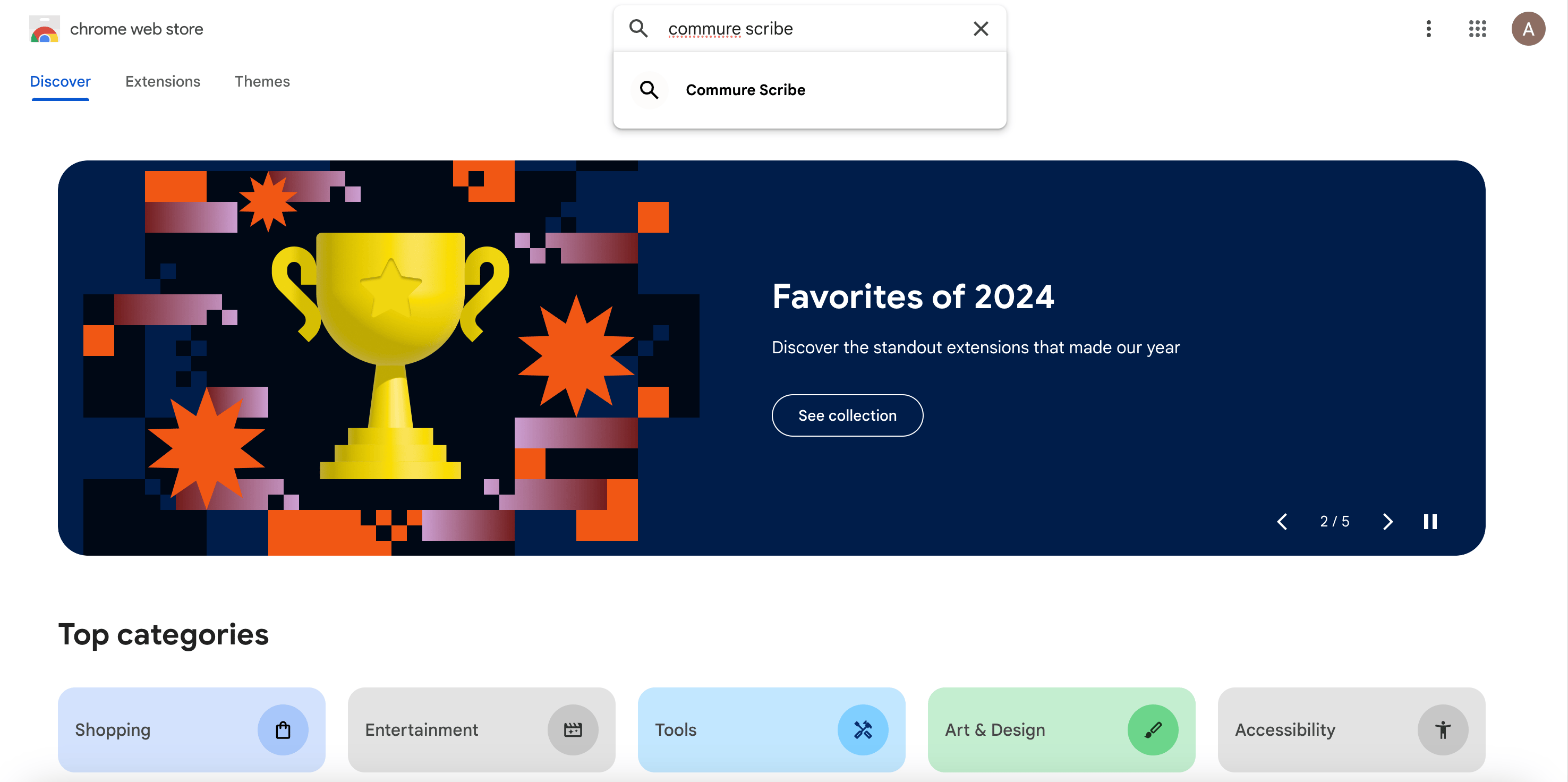 * Click **"Add to Chrome"** and then confirm by selecting **"Add Extension"**.
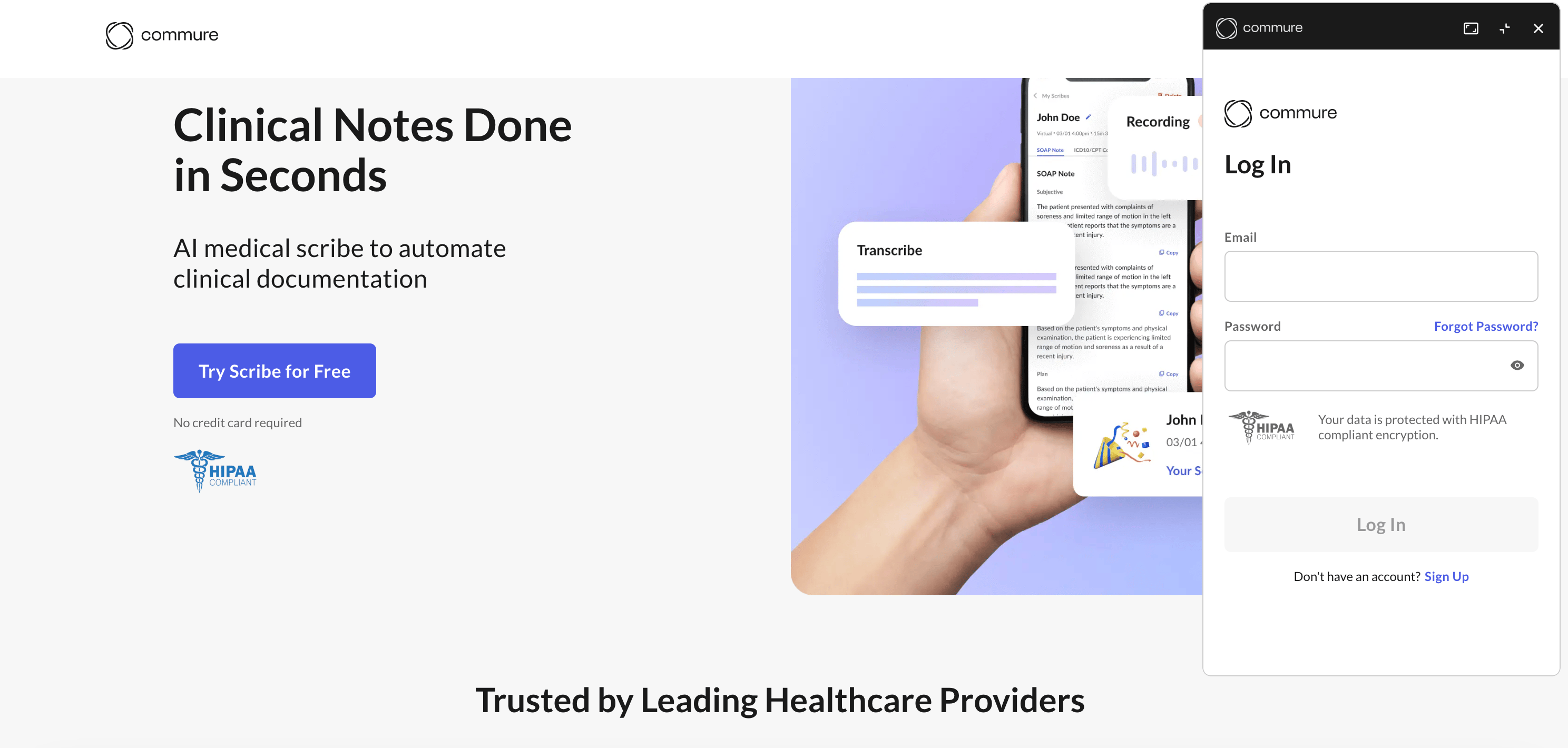
 ## 2. Log In to Your Account
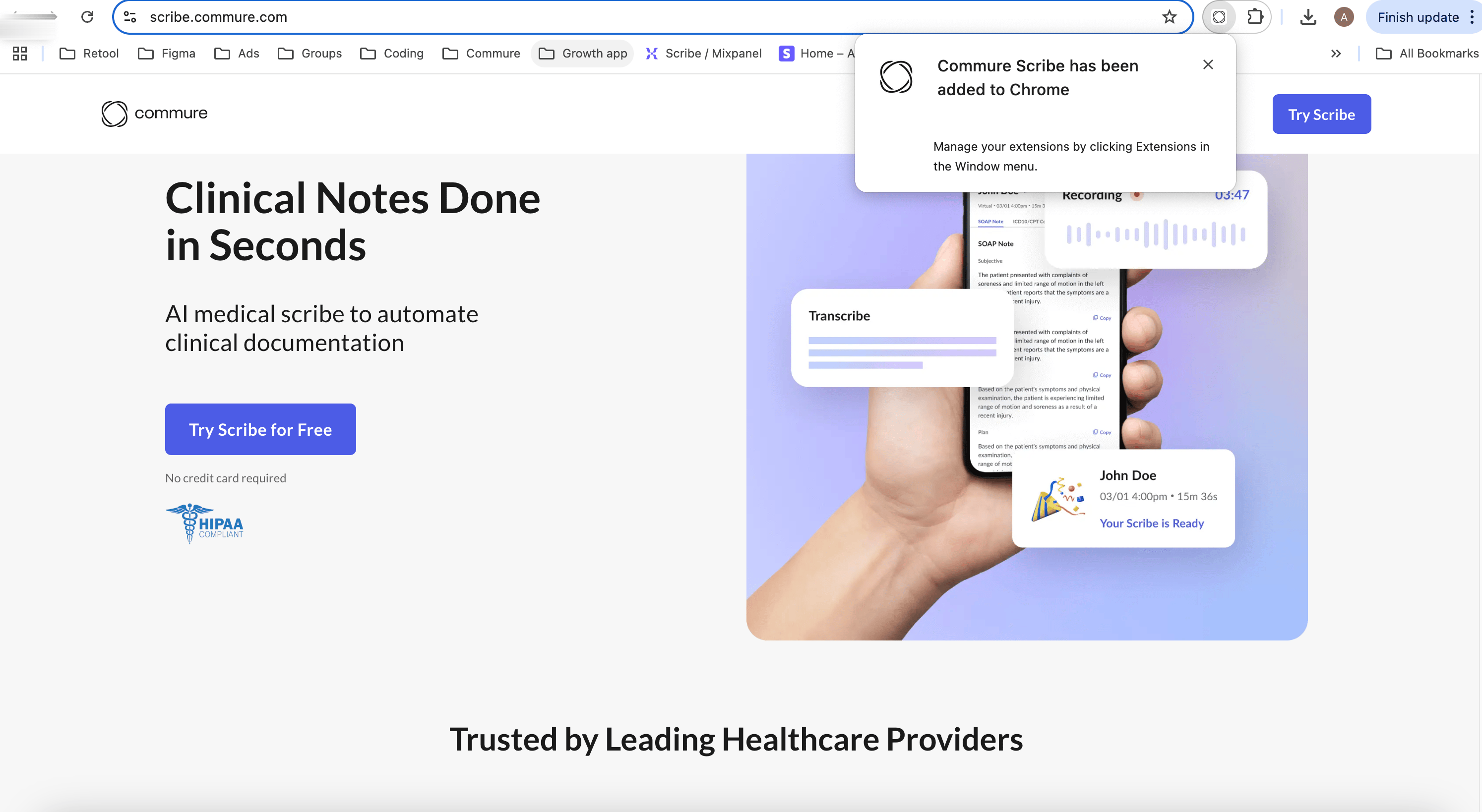
* After installation, click the Commure Scribe icon in your Chrome toolbar.
## 2. Log In to Your Account
* After installation, click the Commure Scribe icon in your Chrome toolbar.
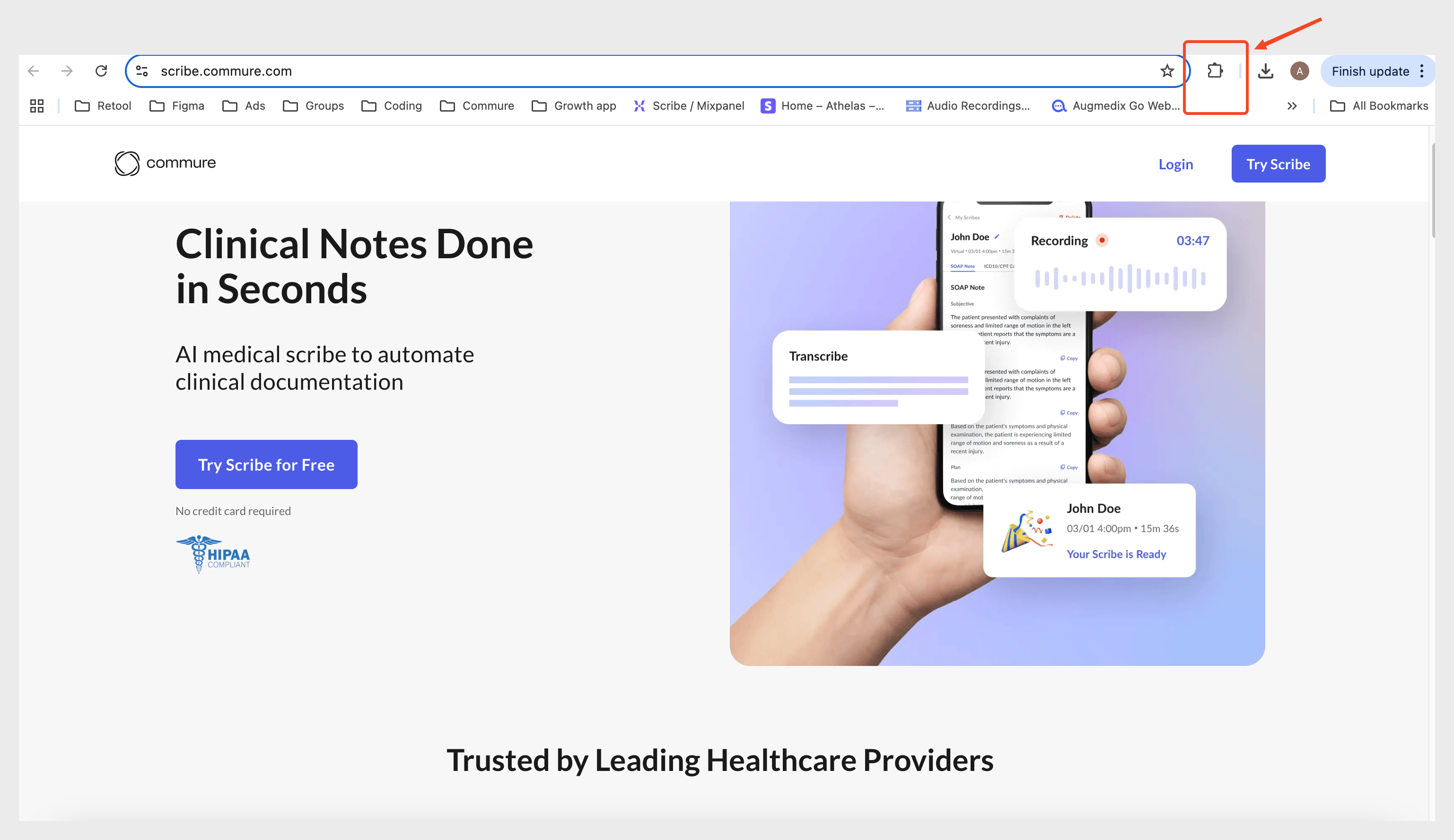 * Log in using the credentials you created during sign-up.
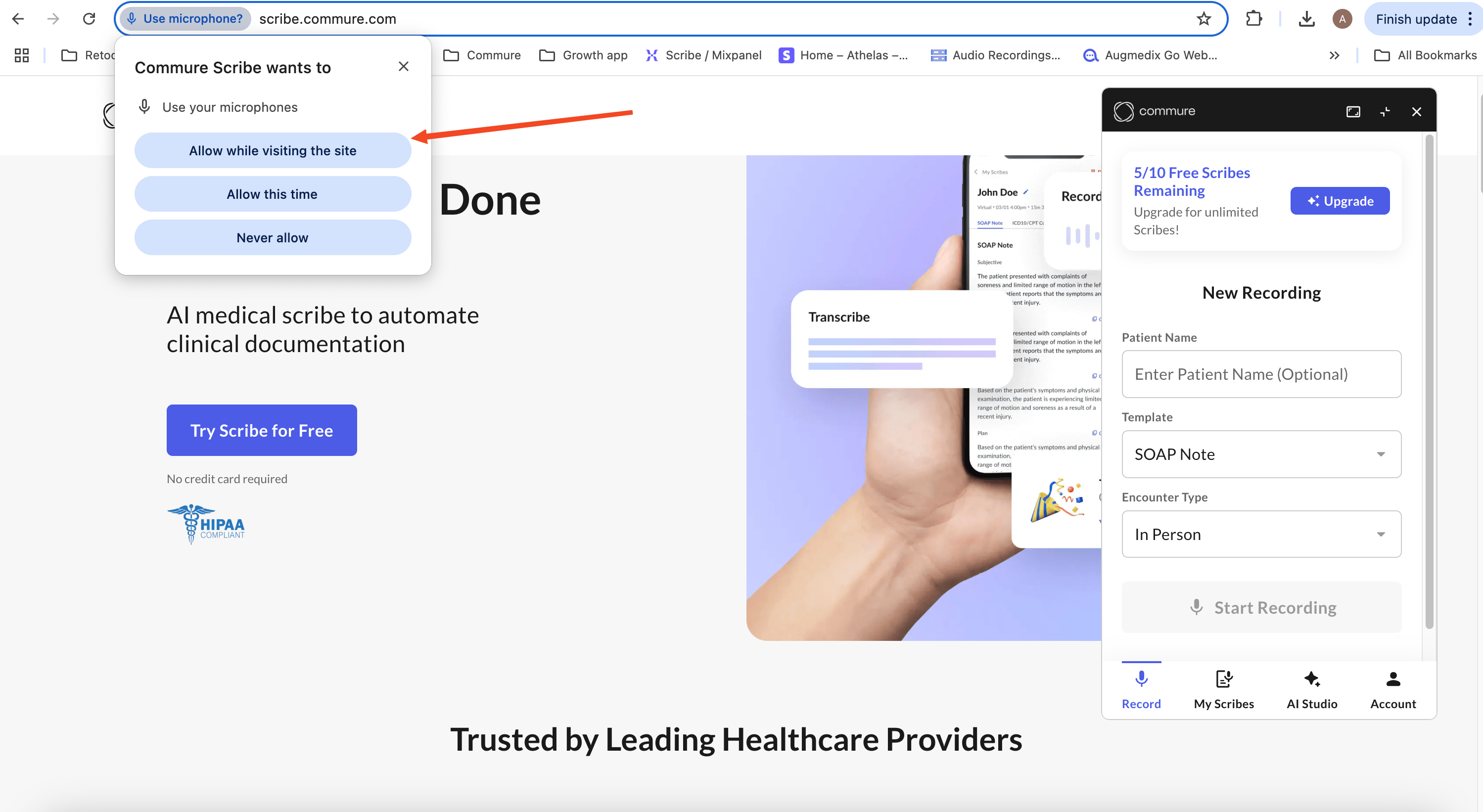
 ## 3. Enable Permissions
* Allow microphone access when prompted to ensure audio recording functionality during patient encounters.
* Follow any additional prompts to set up the extension for optimal use.
## 3. Enable Permissions
* Allow microphone access when prompted to ensure audio recording functionality during patient encounters.
* Follow any additional prompts to set up the extension for optimal use.
 Pin the Commure Scribe icon to your toolbar for quick and easy access. Click the puzzle piece icon in the toolbar, find Commure Scribe, and select **"Pin"**.