> ## Documentation Index
> Fetch the complete documentation index at: https://docs.scribe.commure.com/llms.txt
> Use this file to discover all available pages before exploring further.
# Deactivating, Cancelling, or Deleting Your Account
> Cancel your subscription yourself, or contact support to fully delete your account.
## Canceling Your Subscription
You can cancel your subscription yourself at any time:
Go to [Account > Manage Subscription](https://scribe.commure.com/app/account/upgrade).
Click cancel. It takes effect at the end of your current billing period.
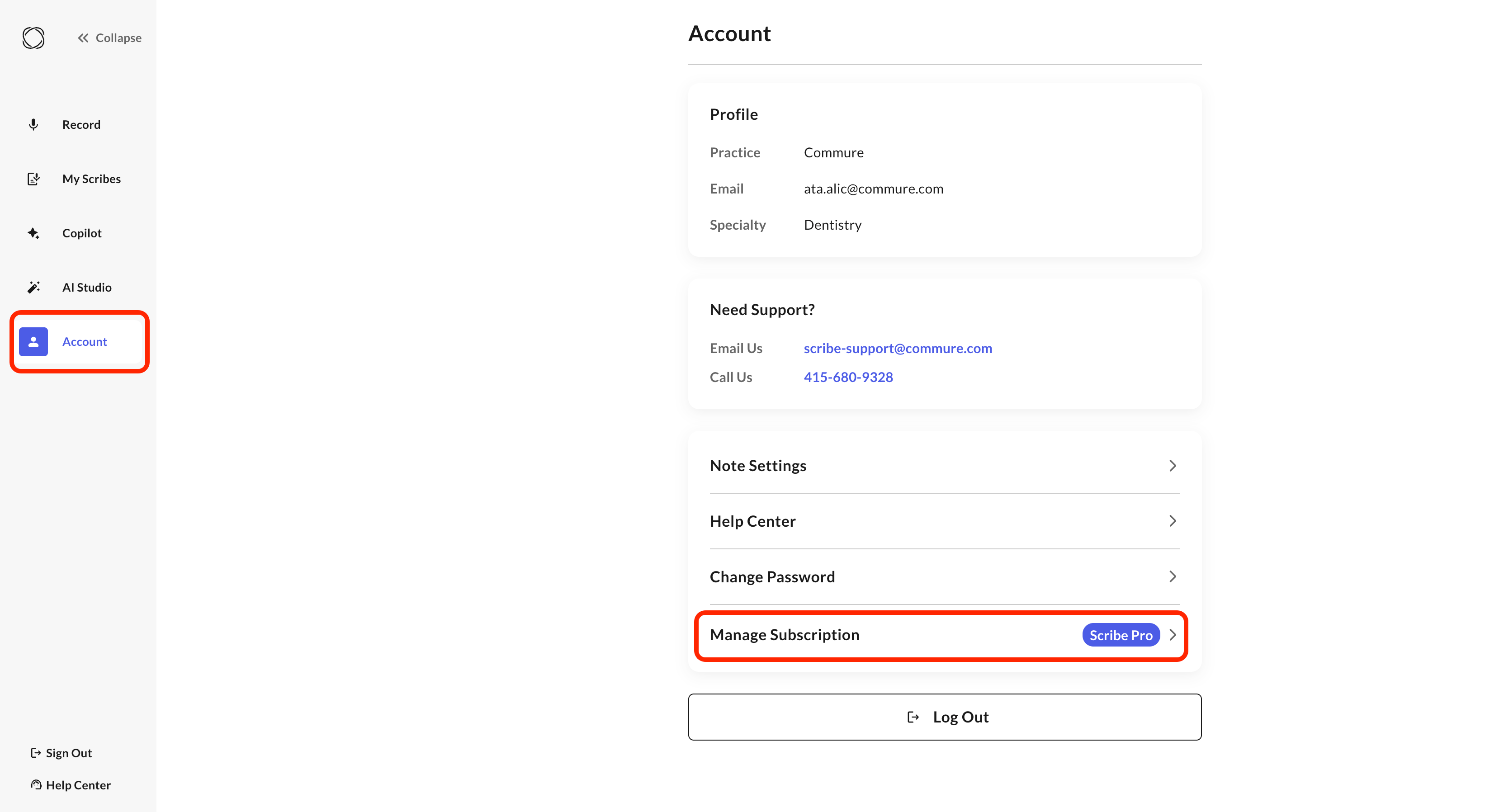 After cancellation, you'll still have access to all your past scribes — you just won't be able to record new ones once the billing period ends.
## Deleting Your Account
Full account deletion isn't self-service — it requires contacting our support team.
Before requesting deletion, make sure to cancel your subscription first (see above) so you aren't billed again.
Once support confirms your deletion request, you'll receive a confirmation when it's complete.
After cancellation, you'll still have access to all your past scribes — you just won't be able to record new ones once the billing period ends.
## Deleting Your Account
Full account deletion isn't self-service — it requires contacting our support team.
Before requesting deletion, make sure to cancel your subscription first (see above) so you aren't billed again.
Once support confirms your deletion request, you'll receive a confirmation when it's complete.